inpaint-flow


详情
下载文件
模型描述
【SDXL Inpaint Workflow】
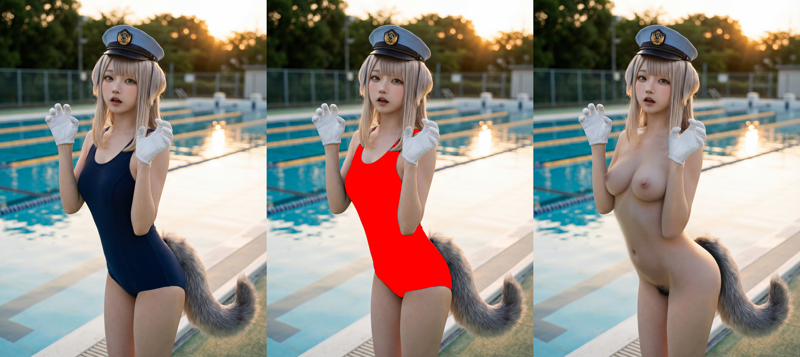
※画像は YNS-Real で生成したフブさんを Nanobanana Pro で編集したあと、本ワークフローを使用しました。
The image was created using YNS-Real, edited with Nanobanana Pro, and then processed through this workflow.
1. 概要
このワークフローは、Nanobanana Proで生成した4K画像を、SDXL系モデルで4K解像度のままインペイントする ために作成しました。
通常のインペイントを高解像度で行うと「二重写り(ゴースト)」が発生しやすいですが、カスタムノードを併用することでこの問題を効果的に回避できます。
This workflow was created to perform 4K-resolution inpainting with SDXL-based models using images generated in 4K quality by Nanobanana Pro.
When standard inpainting is performed at high resolution, double exposure (ghosting) often occurs.
By combining custom nodes, this workflow effectively avoids that problem.
2. バージョンの違い
v1.0:
手動でマスクを作成する必要があります。
手動のため、細かい範囲指定が可能です。
v1.1:
テキストでマスク範囲を指定可能。
手軽ですが、塗り残しが発生するため、
mask_expand_pixelsの値を大きめに設定する必要があります。マスク範囲を指定する際は、単に「a bikini」とするよりも、「a blue bikini」のように色を指定したり、「a blue bikini top and bottom」や「a blue bikini set」のように詳細を指示した方が、より良い結果が得られやすいです。
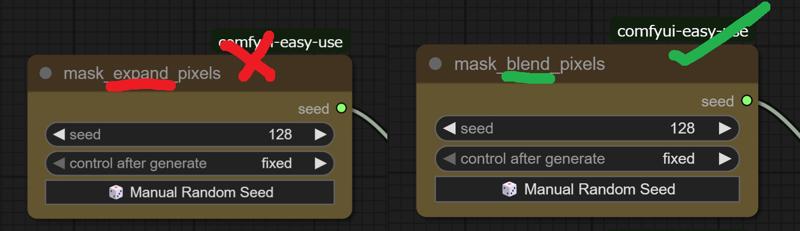
※ノードの名称を一部誤記していますが、そのままでも使用に問題はありません。
v1.0:
Requires manual mask creation.
Allows precise control over small areas due to manual operation.
v1.1:
Enables mask area specification via text input.
Easier to use, but may leave unmasked areas; therefore, it is recommended to increase the value of
mask_expand_pixels.When specifying the mask area, it often produces better results to include more detail—such as color or specific clothing parts—by writing prompts like “a blue bikini”, “a blue bikini top and bottom”, or “a blue bikini set”, rather than simply “a bikini.”
Note: Some node names are incorrectly labeled, but this does not affect functionality.
3. 特徴
本ワークフローの最大の特徴は、
「通常のSDXLモデルをインペイント専用モデルのように扱える」 ことです。
これにより、好みのモデルで高解像度インペイントを安定して行うことが可能になります。
内部的には、マスクした範囲を切り出し → 切り取った部分のみをインペイント → 元の画像へ貼り戻すという処理が行われています。
The main feature of this workflow is that it allows you to
“use a standard SDXL model as if it were an inpainting-dedicated model.”
This enables stable, high-resolution inpainting with any model you prefer.
Internally, it performs the following process:
extract the masked area → inpaint only the cropped section → paste it back into the original image.
4. 主要ノード「Inpaint Crop」の解説(翻訳付き)
For those who can read English, detailed explanations of the parameters are available on the GitHub page of ComfyUI-Inpaint-CropAndStitch.
The section below provides a simplified overview in Japanese for reference.
At the end, reference images and the URLs of each custom node are provided for your convenience.
以下は GitHub に記載されていたパラメータの日本語訳です。
■ downscale_algorithm / upscale_algorithm
画像を縮小・拡大する際に使用するリサイズ(補間)アルゴリズムを指定します。
■ preresize
クロップ前に入力画像をリサイズします。
最小解像度を満たすための拡大
最大解像度を超えないための縮小
両方を組み合わせてリサイズ
入力画像の解像度を一定範囲に揃える際に便利です。
■ mask_fill_holes
マスク内の穴(閉じた領域)を完全に埋めるかどうかを指定します。
囲まれた領域をマスクとして扱うようになります。
■ mask_expand_pixels
指定ピクセル分だけマスクを外側に広げます。
■ mask_invert
マスクを反転させ、通常とは逆に「マスク部分を処理対象」とするかを指定します。
■ mask_blend_pixels
ステッチ用マスクを指定ピクセル数分だけ拡張し、ぼかします。
継ぎ目が自然に馴染むようになります。
■ mask_hipass_filter
指定値より低いマスク値を無視します。
「ほぼ黒」の領域を誤ってマスク扱いするのを防止します。
■ extend_for_outpainting
マスクを上下左右へ任意の倍率で拡張します。
1より大きい値: アウトペイント(拡張)
- 例:
2→ 画像サイズと同じ幅だけ拡張
- 例:
1より小さい値: クロップ(縮小)
- 例:
0.75→ 25%分を削除
- 例:
■ context_from_mask_extend_factor
マスクのサイズに対して、どれだけ周囲のコンテキスト(参照範囲)を広げるかを指定します。
1: 広げない
2: マスクサイズと同じ分だけ全方向に拡張
■ output_resize_to_target_size
クロップ後の画像を指定解像度に強制リサイズします。
最終的にステッチノードで自然に統合されます。
■ output_padding
出力画像の幅・高さを、指定値の倍数に揃えます。
多くのモデルは 8/16/32 の倍数である必要があります。
5. 推奨設定
インペイント範囲や入力画像の解像度によって、上記パラメータは最適値が異なります。
また、KSampler の設定も使用モデルに応じて調整してください。
The optimal values for the above parameters may vary depending on the inpainting area and the resolution of the input image.
Additionally, please adjust the KSampler settings according to the model you are using.
下記はv1.1
** **mask_expand_pixels:64(16~64?)
mask_blend_pixels:32
896×1200
 mask_expand_pixels:512(128~512?)
mask_blend_pixels:128
3584×4800
6. 使用ノード一覧
共通(v1.0 / v1.1 共通)
v1.1 のみ追加