SeedVR2 1080p Video Upscale & Interpolation / ComfyUI Workflow


Details
Download Files
Model description
SeedVR2 1080p Video Upscale & Interpolation
A simple workflow to dramatically enhance the quality of your local video generations using SeedVR2 nodes and RIFE49 for interpolation.
How to use:
Load your video into the Load Video node .
Press Start (if you have 16 GB of VRAM or more). If you get crashes or OOM-messages, you’ll need to adjust your settings (see below).
The nodes automatically download the required models.
You can also process single images with the same nodes and easily go up to 4K resolution.
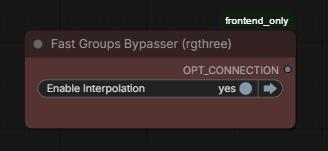
If you’re using this together with my WAN 2.2 workflow, bypass the interpolation in that workflow. Otherwise, it will multiply the number of frames that need to be processed which will likely degrade quality as well. /model/2244646/quadforge-wan-22-i2v-automated-multi-part-comfyui-workflow
The example video was upscaled from 704×1056 to 1176×1764 (2.8x more pixels, 1080p pixel density equivalent for 3:2 aspect ratio) and interpolated by 4× to 64 fps.
Settings from my experience and tips for lower VRAM:
Model: The 7B Q4 version does not look worse than the full FP16 in my opinion.
Block swap: Higher values reduce speed slightly but frees VRAM without impacting quality.
Resolution: Adjust as needed (currently optimized for 3:2 aspect ratio, higher than 1080p pixel density equivalent wasn’t really possible for me).
Tiled en-/decoding: Essential. Without it, the workflow would crash for me. Monitor your VRAM usage during these phases with the "Crystools" plugin (available in ComfyUI Manager). I couldn’t see much quality impact when lowering tile size.
Batch size: The amount of frames that get processed simultaniously. The most important setting for quality. Aim to keep this as high as possible.
Color correction: Has a significant positive impact. “Off” looks bad. I haven’t tried the other settings yet.

Interpolation:
Pretty straightforward and provides a massive quality boost. Standard WAN 2.2 output is 16 fps. The multiplier determines the final frame count: 4× → 16 fps becomes 64 fps.
The great part: If you find the movements in your video too slow or too fast, you can adjust the fps value. This effectively speeds up the video (higher fps) or slows it down (lower fps) without needing to regenerate the base animation.