nunchaku-Z-image_to_SDXL








Details
Download Files (1)
About this version
Model description
nunchaku-Z-image_to_SDXL
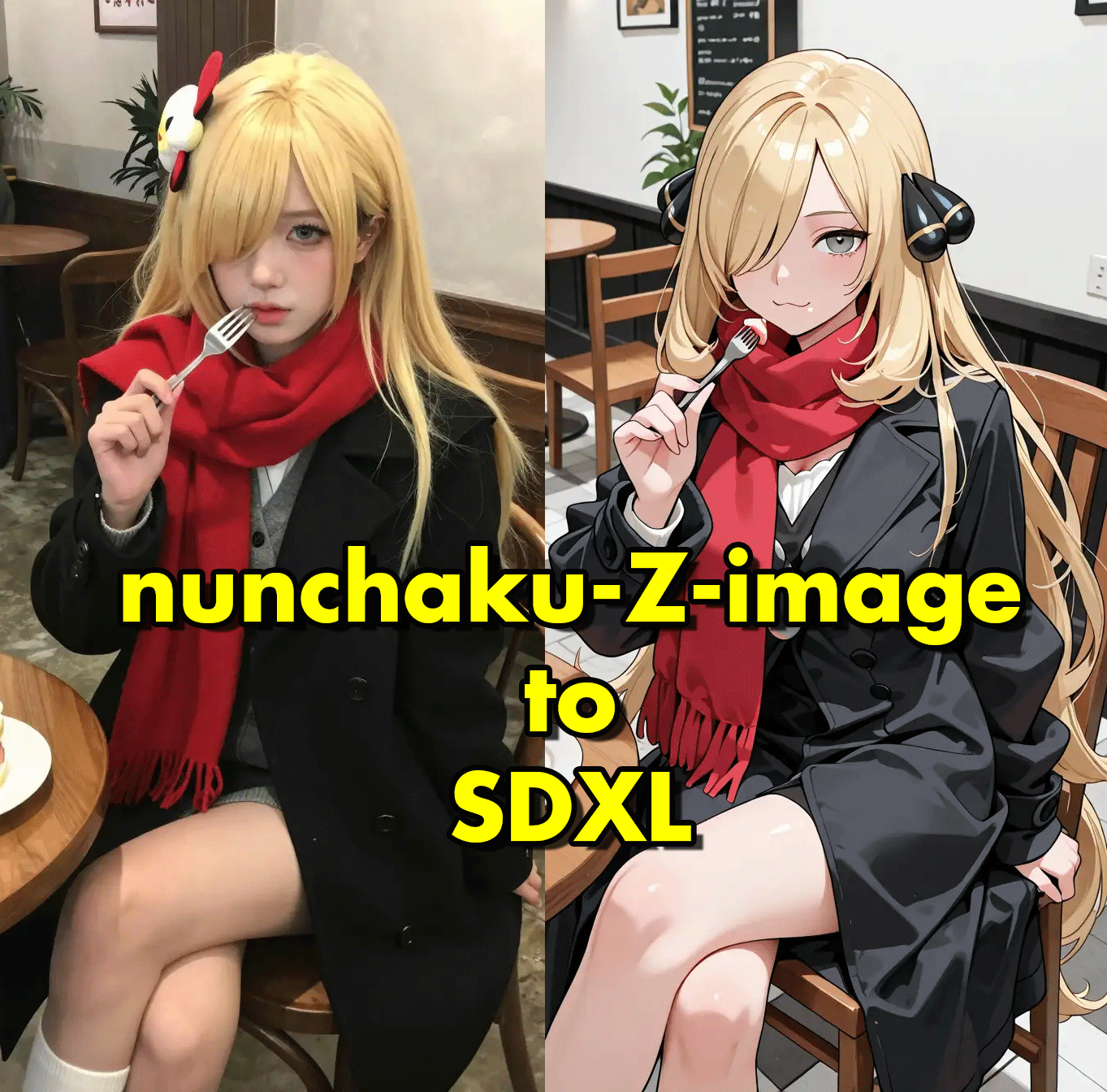
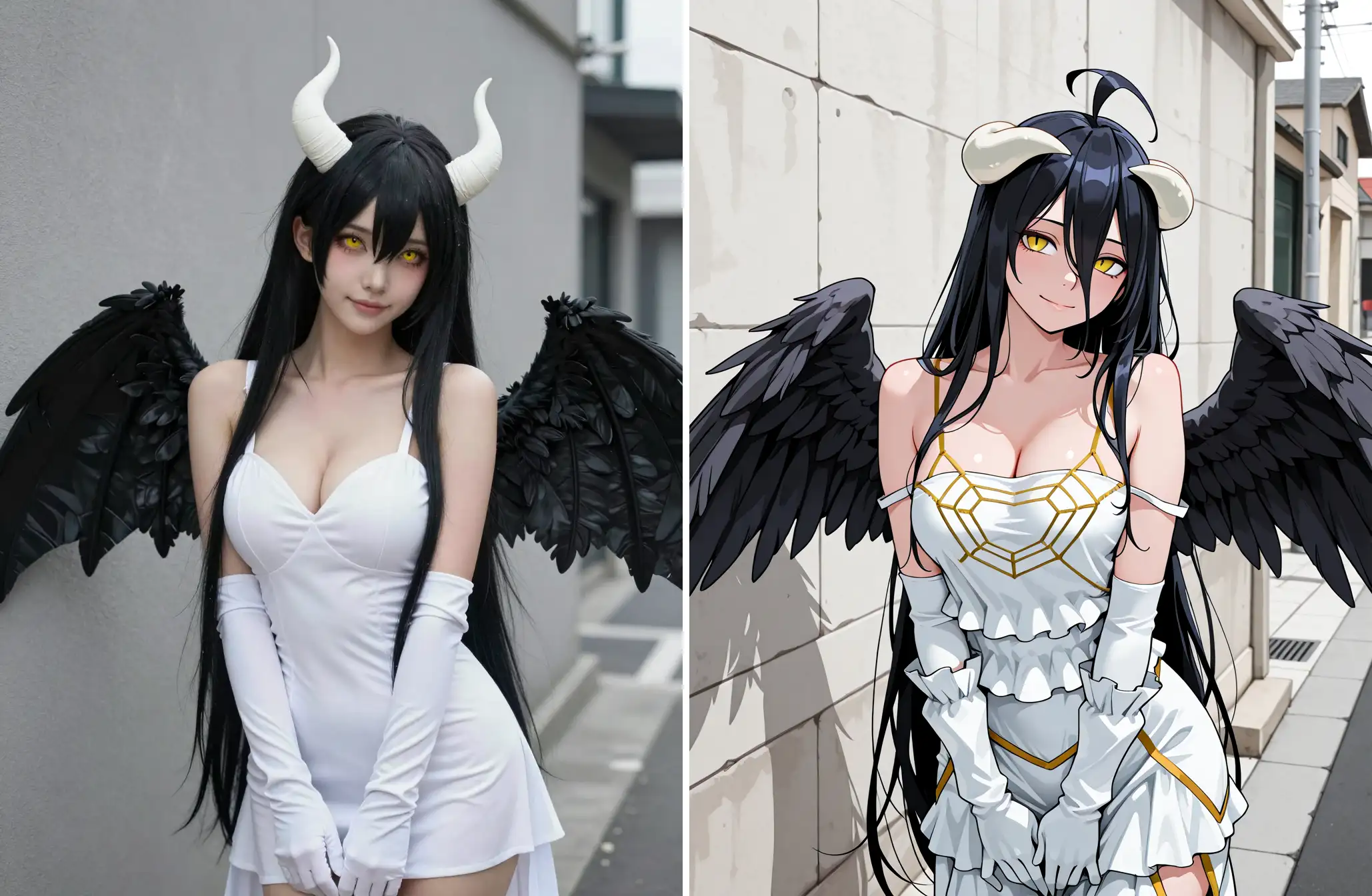
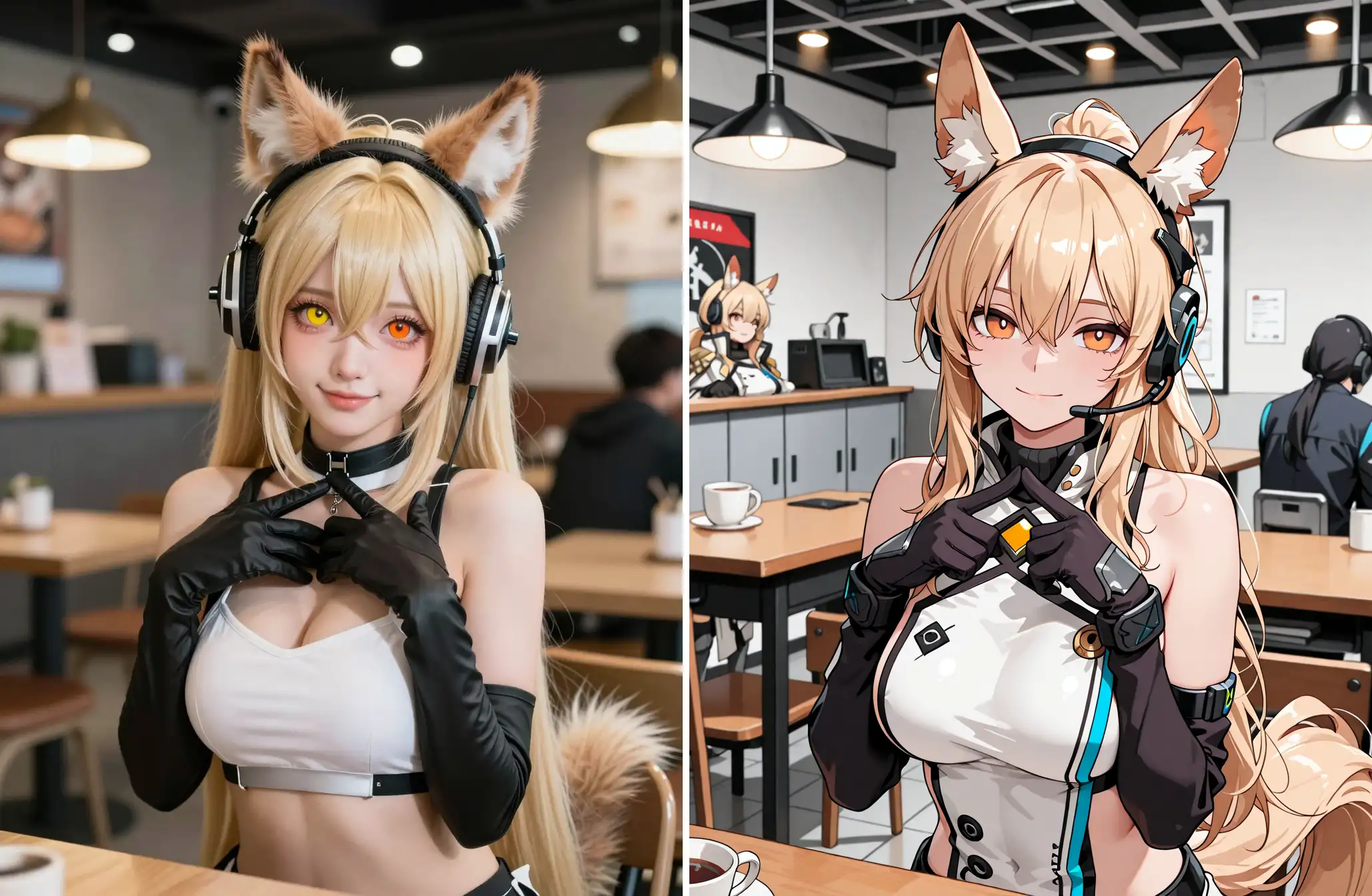
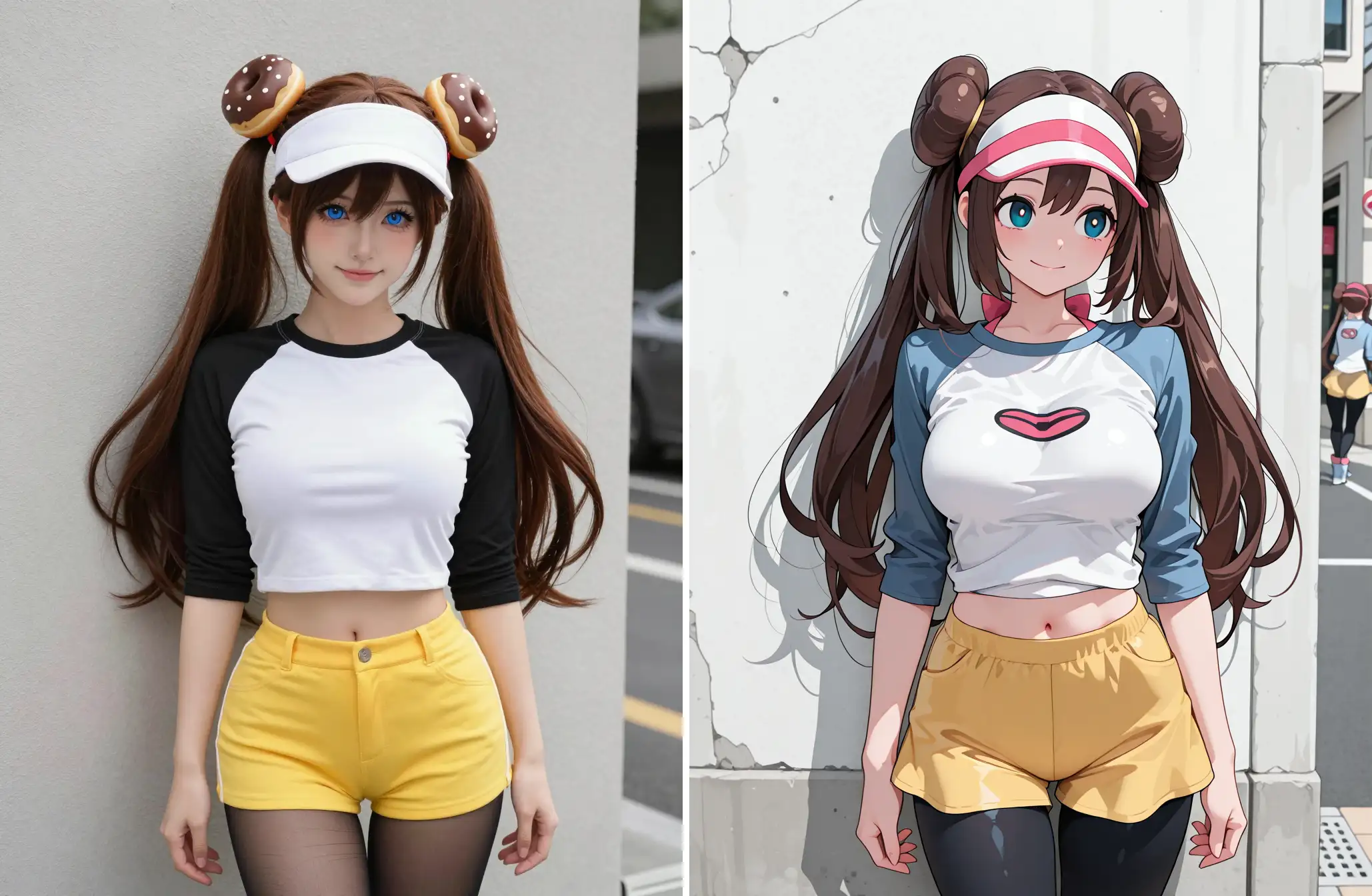
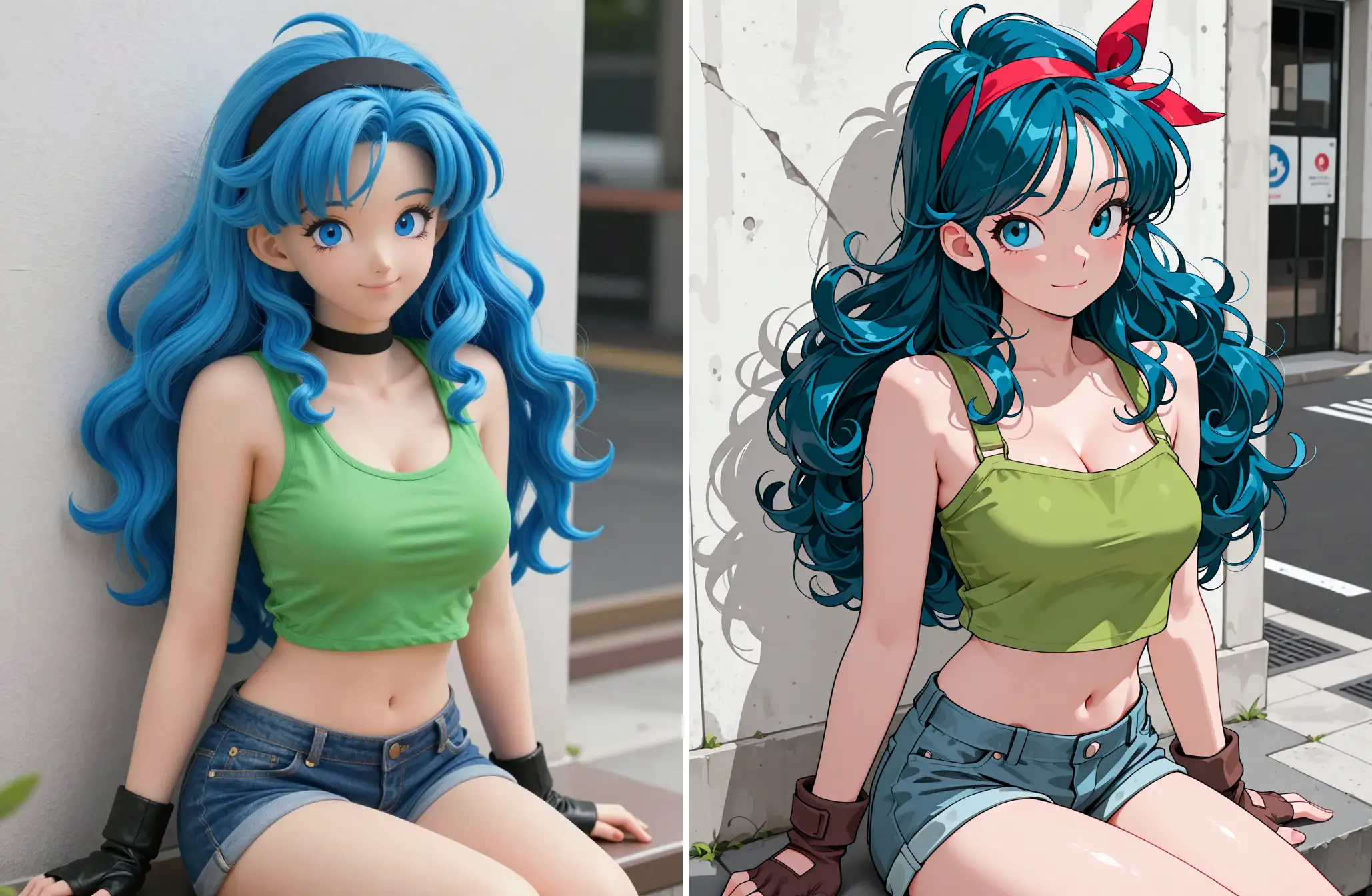
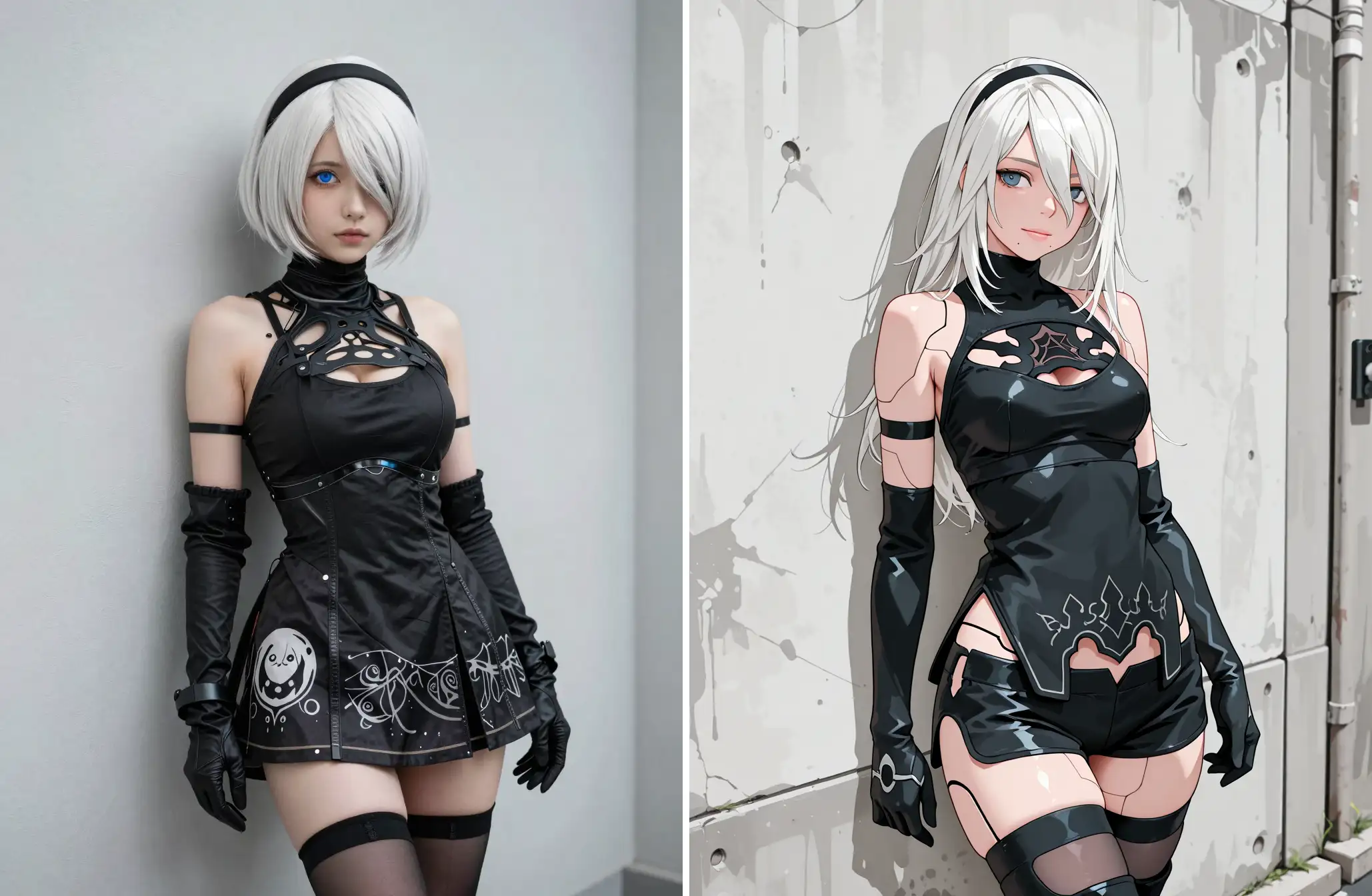
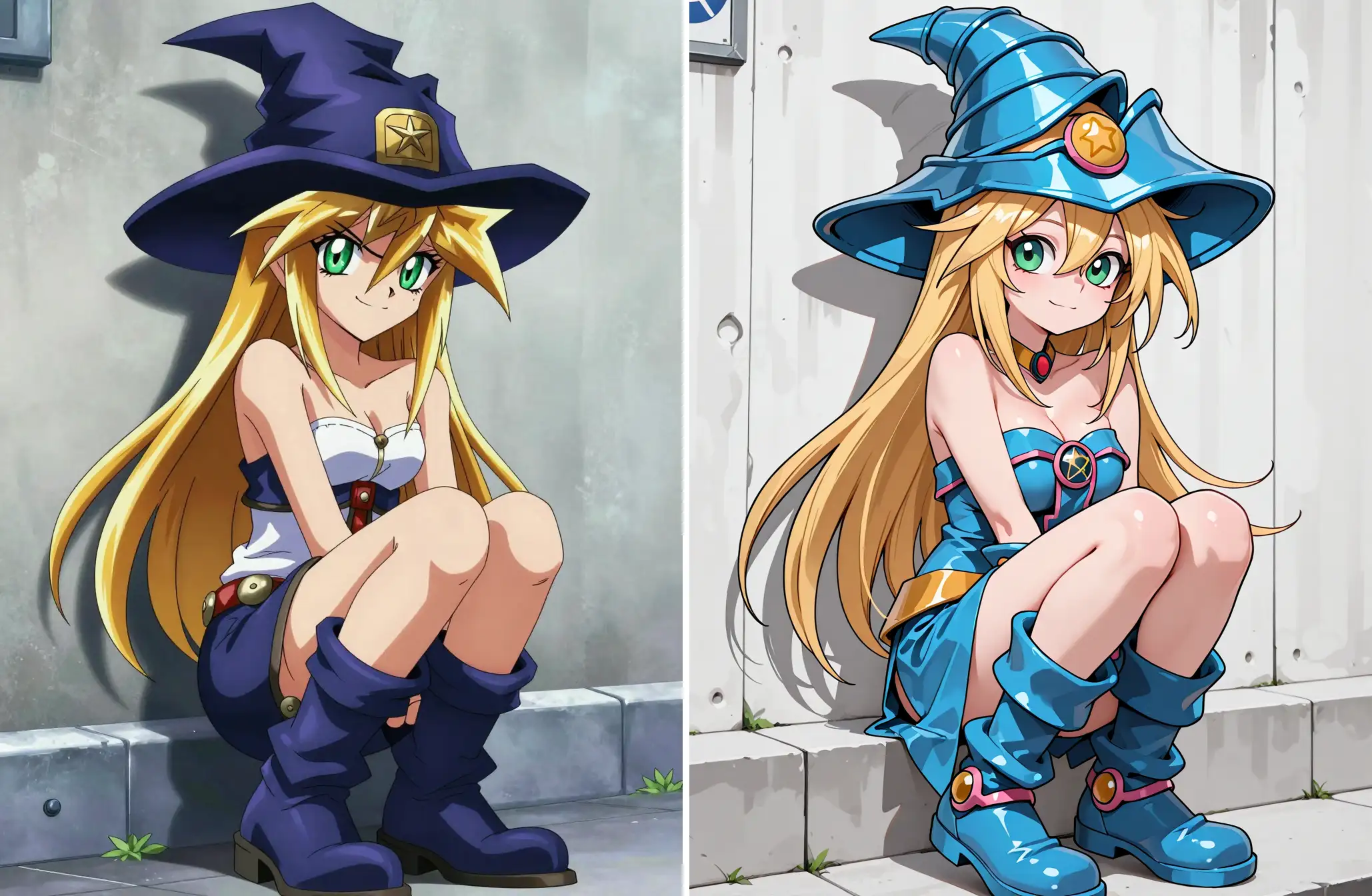
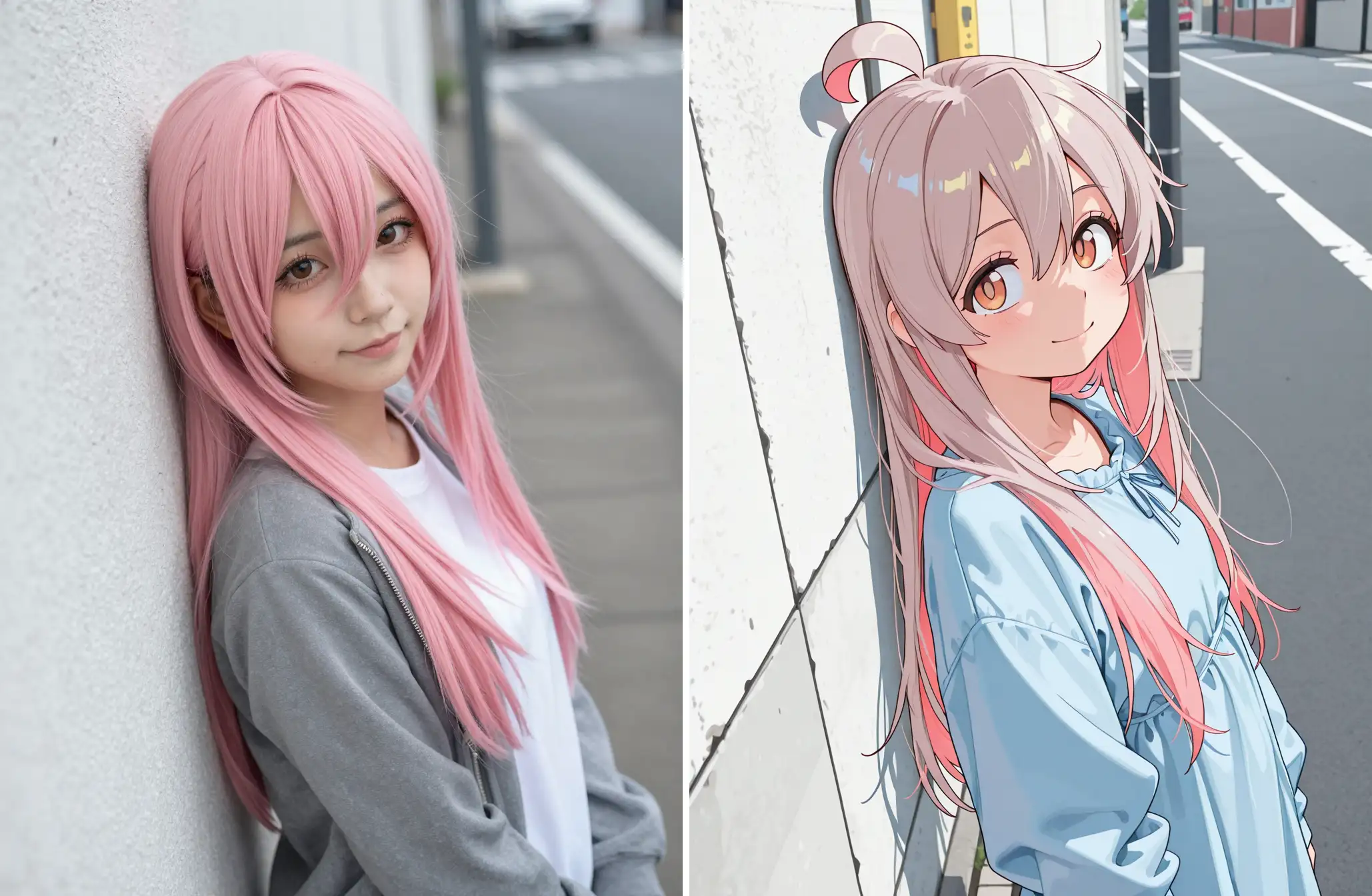
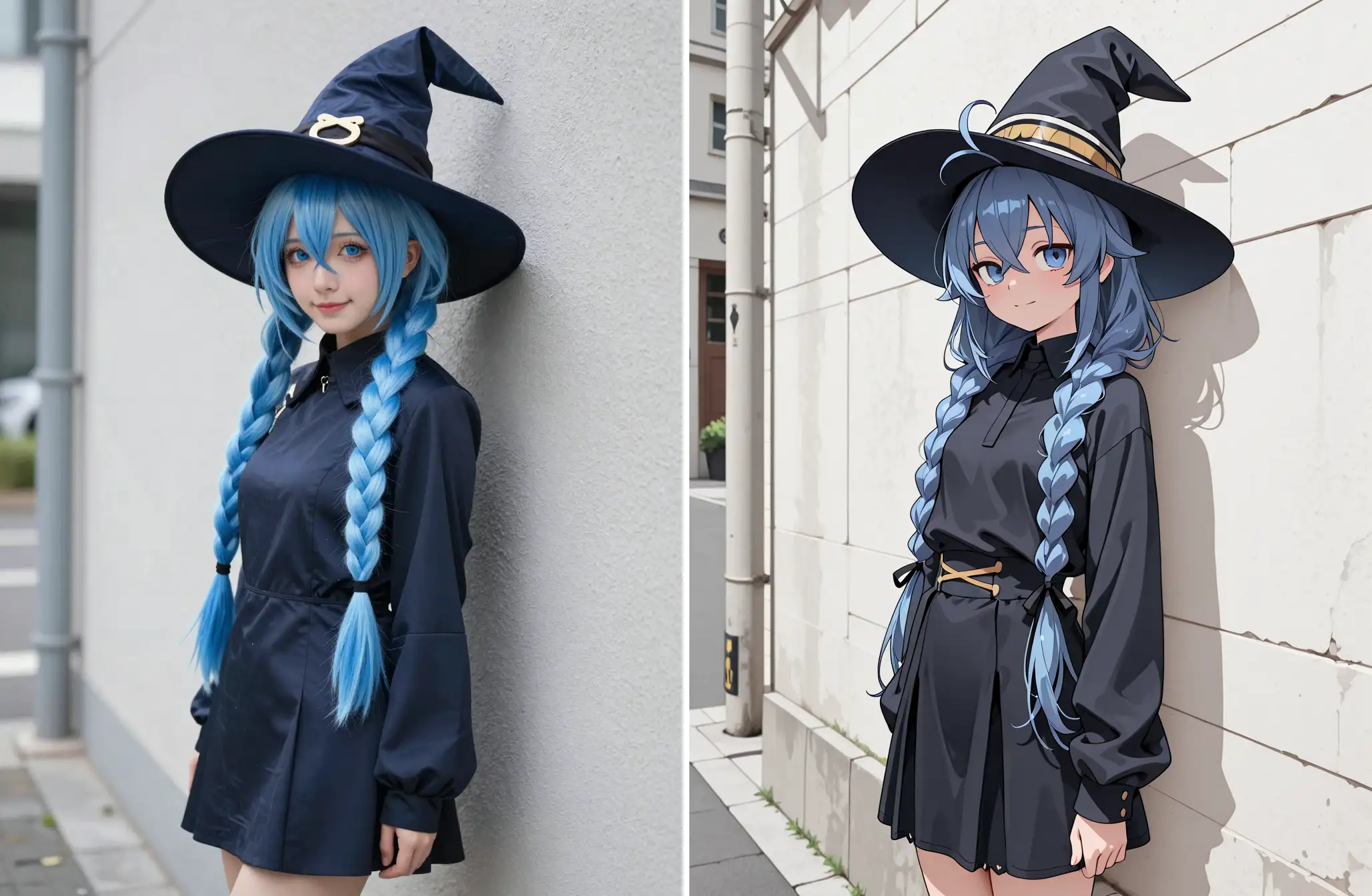
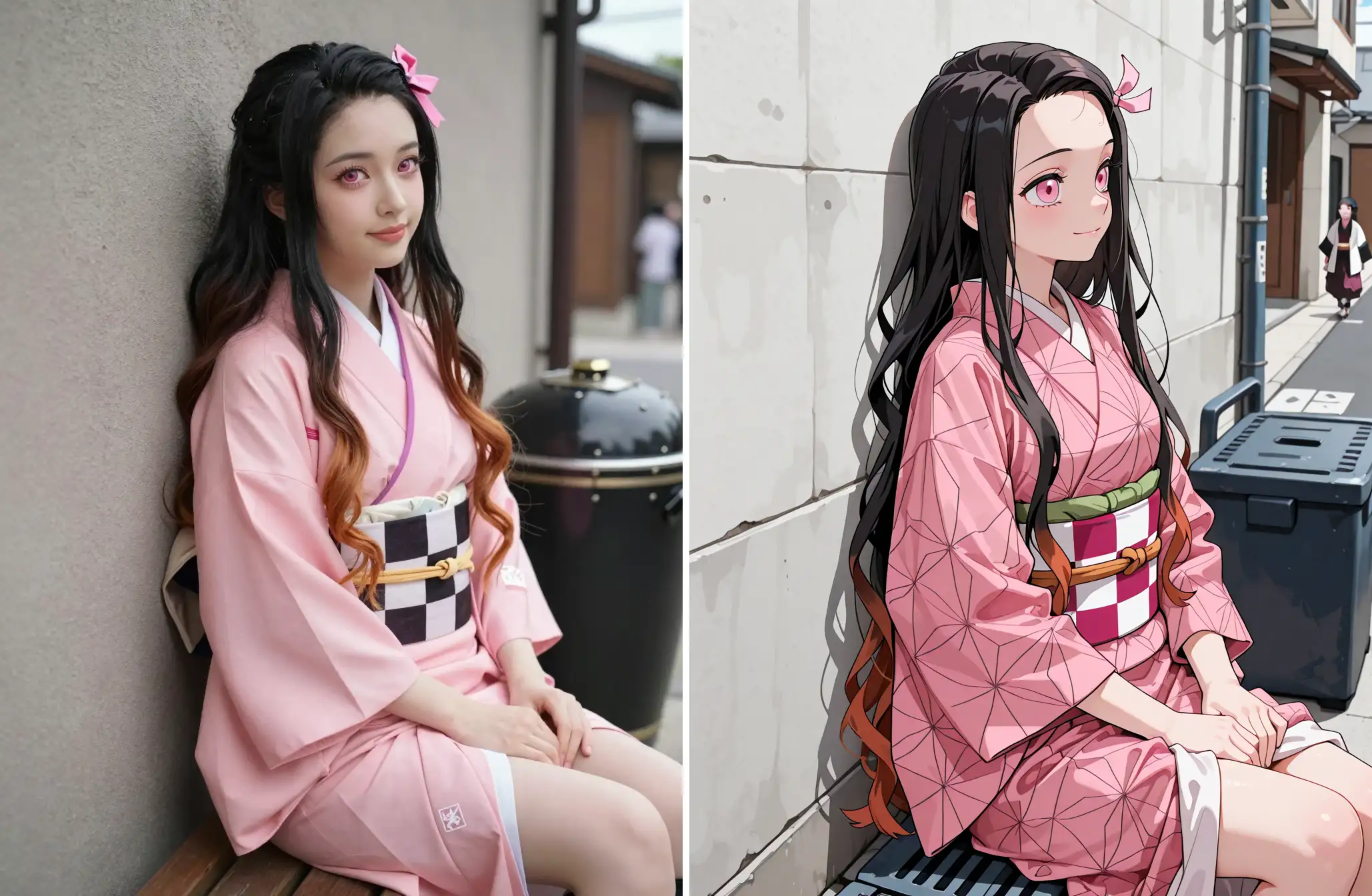
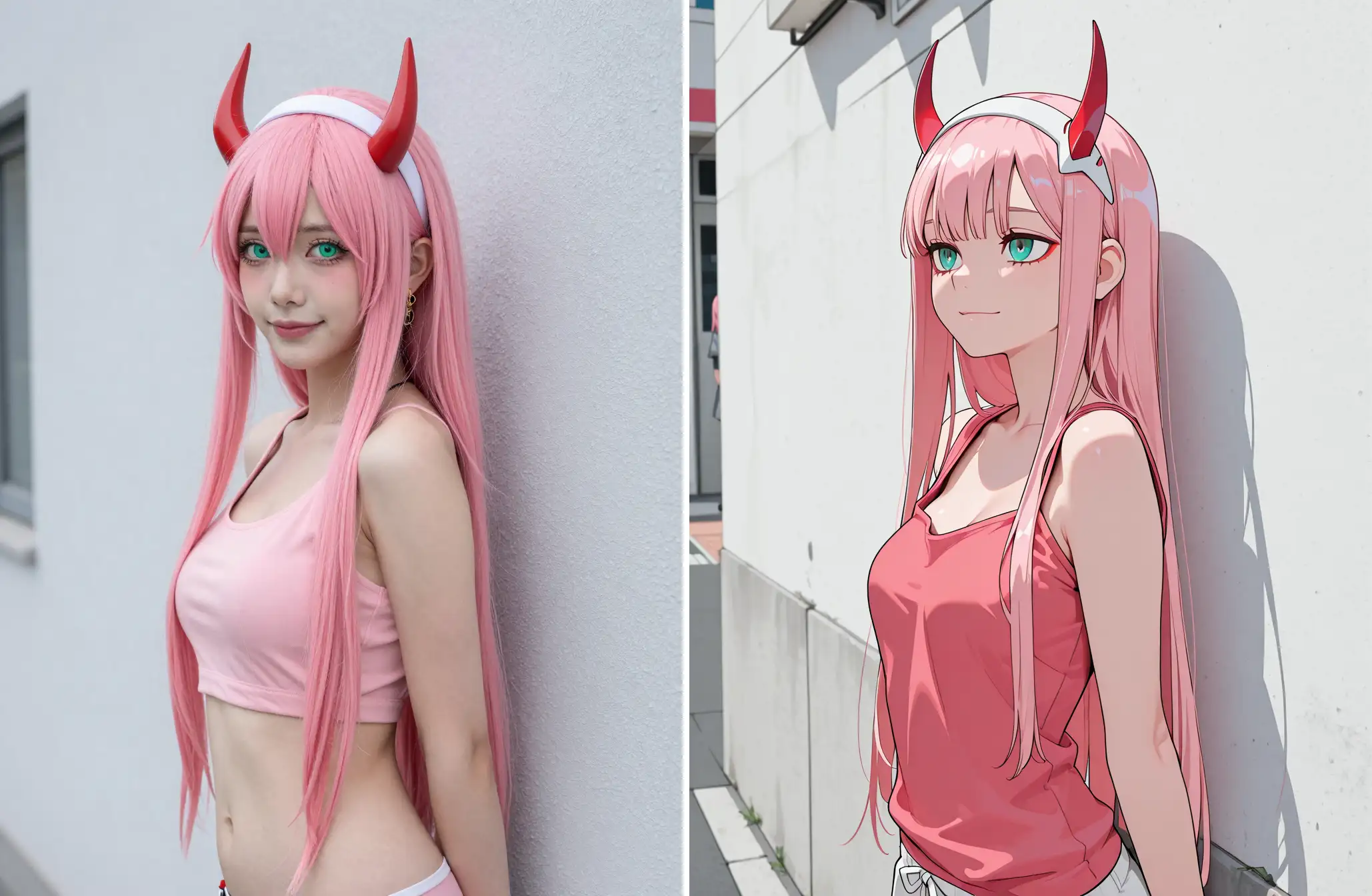
The purpose of this workflow is to mix ZIT's excellent prompt tracking and high image quality with illustrious-SDXL's vast AGC character resources.
In other words, characters that ZIT has not yet learned can be expressed using illustrious-SDXL's learned resources without using Lora.
It combines nunchaku-Z-image-turbo and SDXL for extremely fast generation speeds.
This is how I use it, but it's up to you to use it in your own way.
SVDQ Nunchaku-Z Image Turbo with SDXL Workflow
Very faster generation speed compared to Z-image-Turbo to SDXL (workflow)
Requirements
ComfyUI ver. 0.6 or higher
Install or Updated to Nunchaku version 1.1.0
Install or Updated to ComfyUI-nunchaku version 1.1.0
Models
nunchaku-z-image-turbo or Z-Image Turbo - Quantized for low VRAM
Illustrious Model
Civitai | Share your models Illustrious Checkpoint
also recommend my merge model
Luc_meqemeqe - v1.0 | Illustrious Checkpoint
DMD2 Speed LoRA
dmd2_sdxl_4step_lora_fp16 or dmd2_sdxl_4step_lora_fp32
Here is a great explanation by Simplesmente
Thank you very much, Simplesmente!
This official workflow must work before it can be used.
https://nunchaku.tech/docs/ComfyUI-nunchaku/workflows/zimage.html#nunchaku-z-image-turbo-json
I use ComfyUI 0.6.0 from Stability Matrix
Install ComfyUI anew
Pytroch 2.9.1+cu130 (December 30, 2025)

Install ComfyUI-nunchaku with Manager and restart

Nunchaku Installer


add Preview as Text

connection

mode: Select update node and run
 Follow the text press "R"
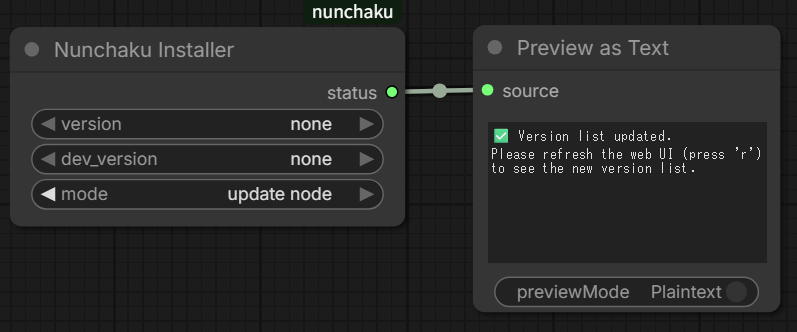
verson : 1.1.0
mode : install
Then RUN

Success! Installed
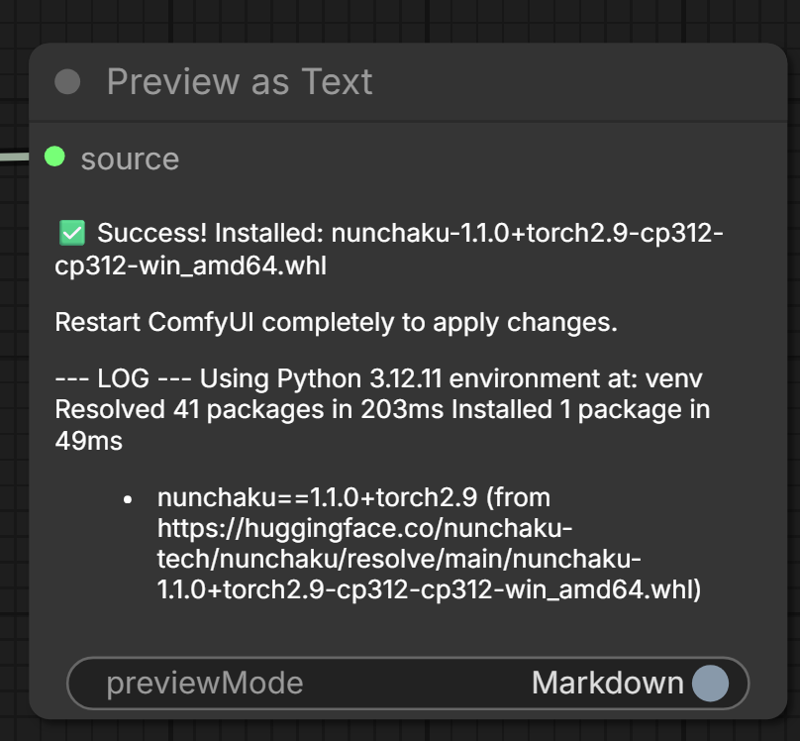
Restart ComfyUI
 Download this workflow and drag and drop it.
This dialog box will appear, so download each model to the designated folder.


Download nunchaku-z-image-turbo to " diffusion_models " folder
(.\StabilityMatrix\Data\Packages\ComfyUI\models)
nunchaku-tech/nunchaku-z-image-turbo at main
RTX50xx is fp4, RTX40xx, 30xx is int4
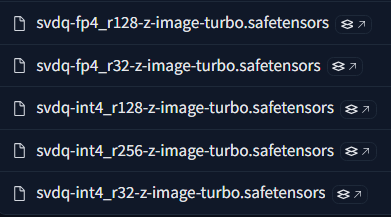 I have an RTX5060Ti 16GB so I chose fp4_r128
Download the model and place it in the designated folder. Press "R" to update the model.
"RUN"

Similarly, drag and drop this workflow "nunchaku-Z-image_to_SDXL.json"
Missing nodes are installed from the Manager's Missing Custom Nodes
restart
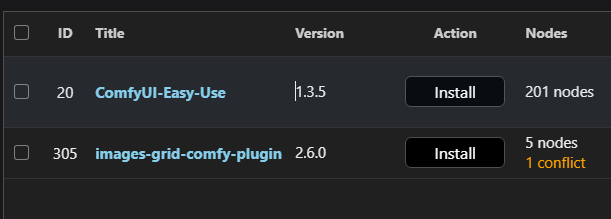
Checkpoints folder contains the Illustrious Checkpoints of your choice.
DMD2 Speed LoRA to the loras folder
dmd2_sdxl_4step_lora_fp16 or dmd2_sdxl_4step_lora_fp32
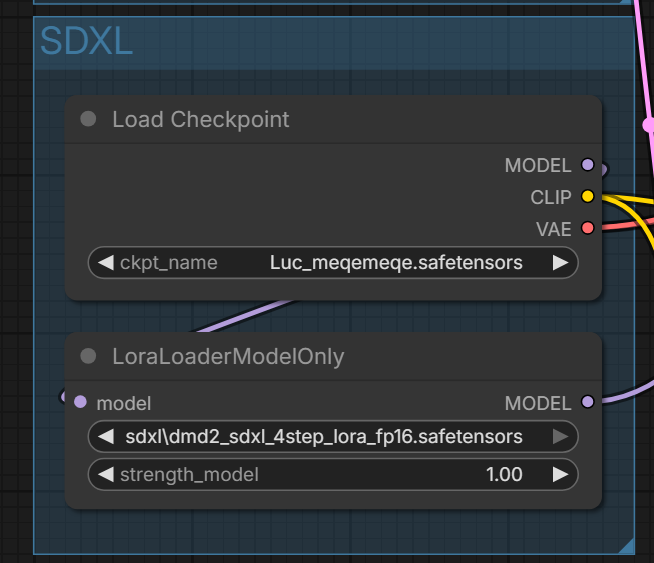
Download the model and place it in the designated folder. Press "R" to update the model.
"RUN"
 If you want to use Lora with nunchaku-z-image-turbo,
Install the following custom node: