ControlNet Cannyでディテールアップ / DetailUpWithControlNetCanny


세부 정보
파일 다운로드 (1)
모델 설명
このワークフローの機能は MyDailyDriverWorkflow に含まれています。
The functionality of this workflow is included in MyDailyDriverWorkflow.
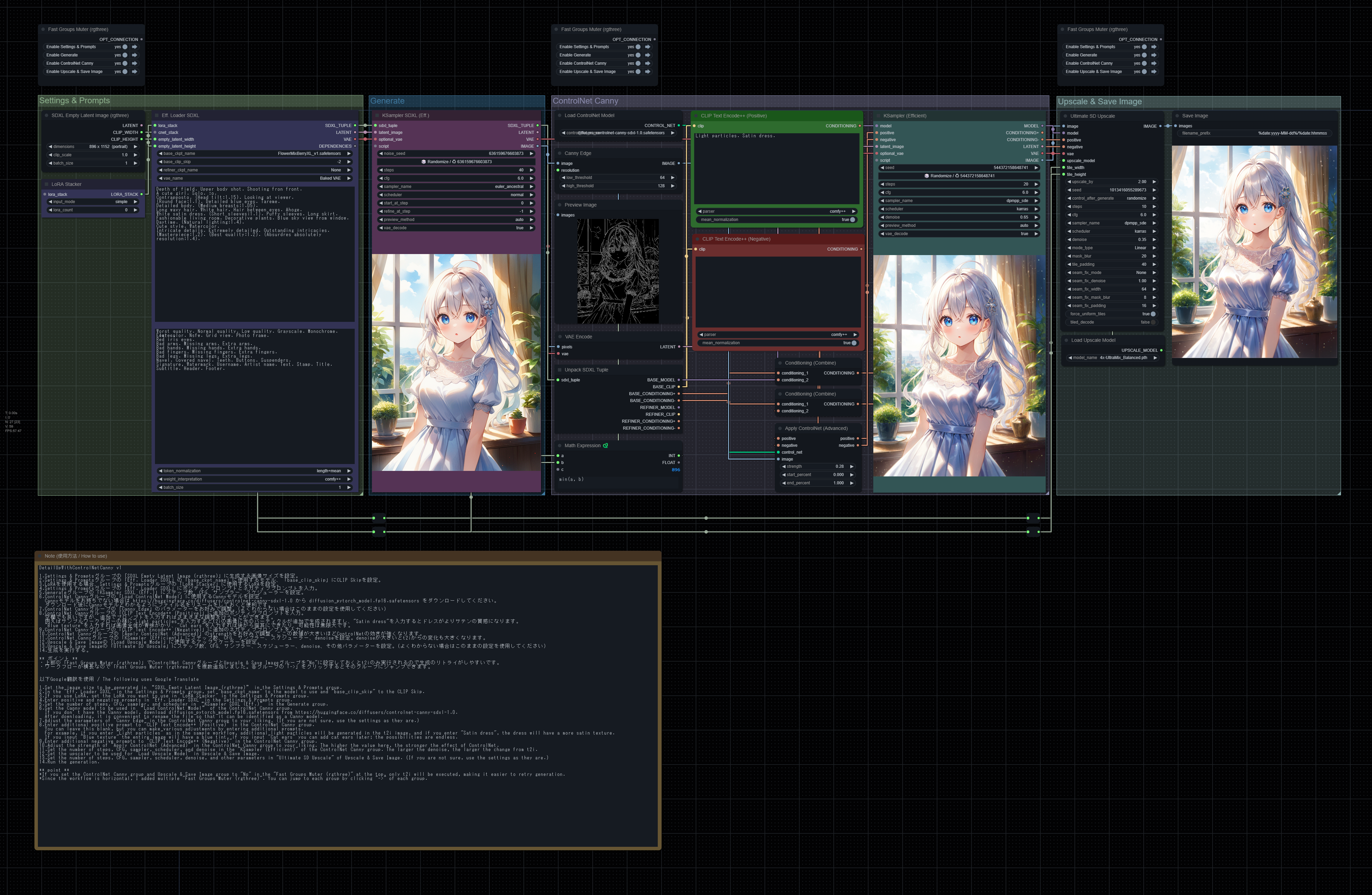
t2iの後にControlNet CannyでディテールアップするComfyUIのサンプルワークフローです。UltimateSDUpscaleによるアップスケーリングに対応しています。ご自由にカスタマイズしてお使いください。
This is a sample workflow of ComfyUI where t2i is followed by detail-up with ControlNet Canny. Supports upscaling using UltimateSDUpscale. Please feel free to customize and use it.
前提条件 / Prerequisites
ComfyUIとComfyUI-Managerがインストールされている。
ComfyUI and ComfyUI-Manager are installed.
カスタムノード / Custom nodes
以下のカスタムノードを使用しています。
The following custom nodes are used.
使用方法 / How to use
同じ内容がワークフロー内のNoteノードにも記載されています。
The same information is also written in the Note node in the workflow.
Settings & Promptsグループの「SDXL Empty Latent Image (rgthree)」に生成する画像サイズを設定。
Settings & Promptsグループの「Eff. Loader SDXL」の「base_ckpt_name」に使用するモデル、「base_clip_skip」にCLIP Skipを設定。
LoRAを使用する場合、Settings & Promptsグループの「LoRA Stacker」に使用するLoRAを設定。
Settings & Promptsグループの「Eff. Loader SDXL」にポジティブプロンプトとネガティブプロンプトを入力。
Generateグループの「KSampler SDXL (Eff.)」にステップ数、CFG、サンプラー、スケジューラーを設定。
ControlNet Cannyグループの「Load ControlNet Model」に使用するCannyモデルを設定。
Cannyモデルをお持ちでない場合は https://huggingface.co/diffusers/controlnet-canny-sdxl-1.0 から diffusion_pytorch_model.fp16.safetensors をダウンロードしてください。
ダウンロード後にCannyモデルとわかるようにファイル名をリネームをしておくと便利です。ControlNet Cannyグループの「Canny Edge」のパラメーターをお好みで調整。(よくわからない場合はこのままの設定を使用してください)
ControlNet Cannyグループの「CLIP Text Encode++ (Positive)」に追加のポジティブプロンプトを入力。
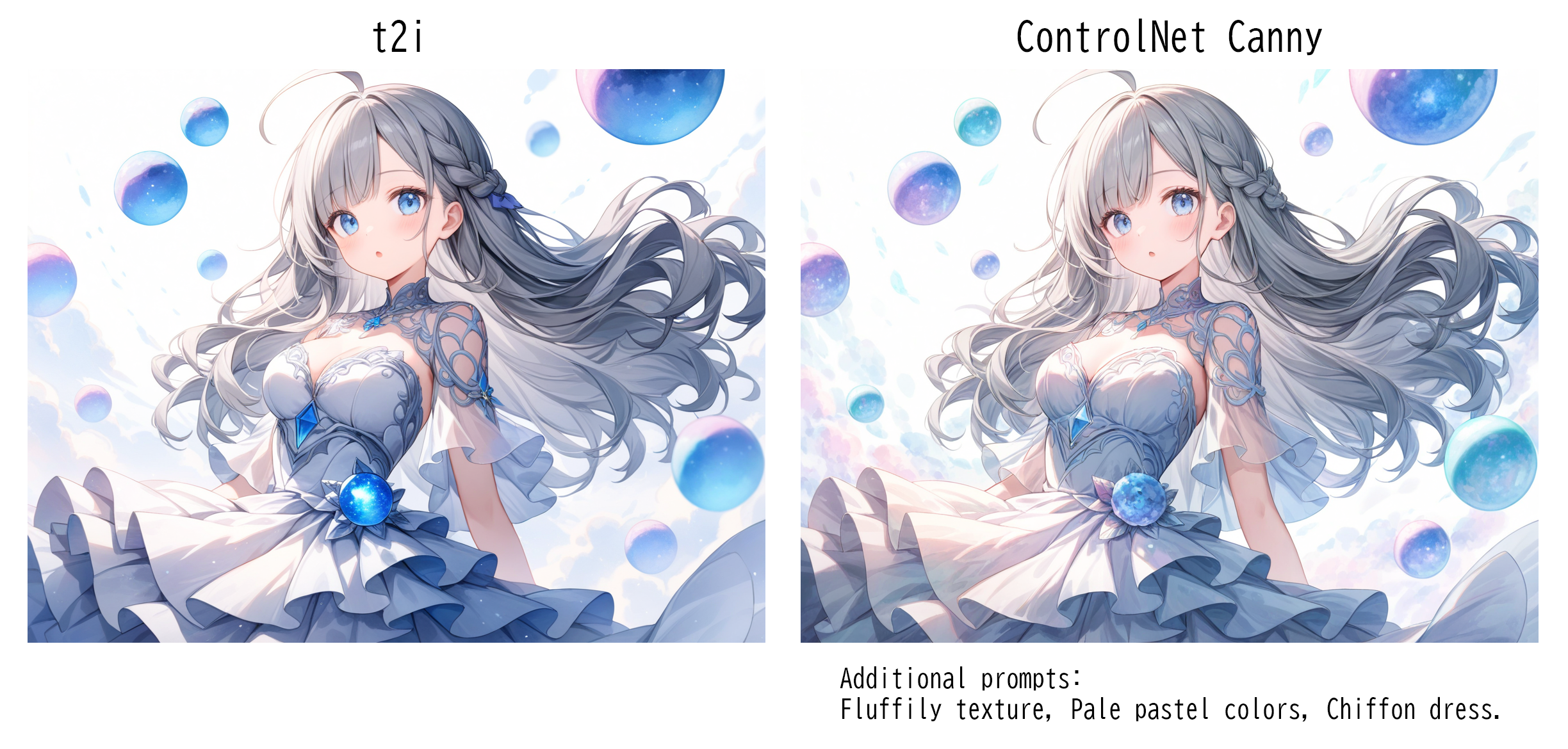
空欄でも良いですが、追加でプロンプトを入力すればさまざまな調整を行うことができます。
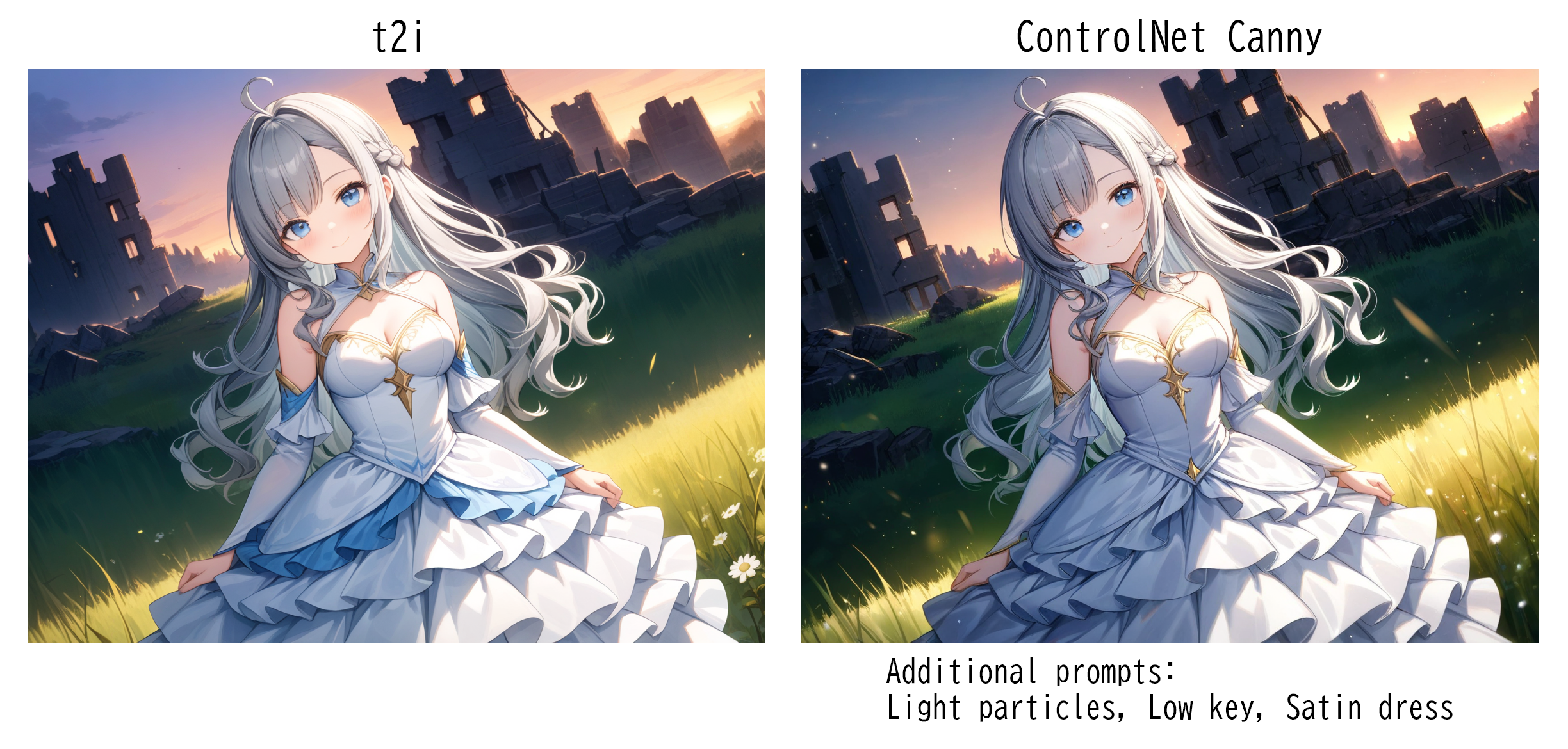
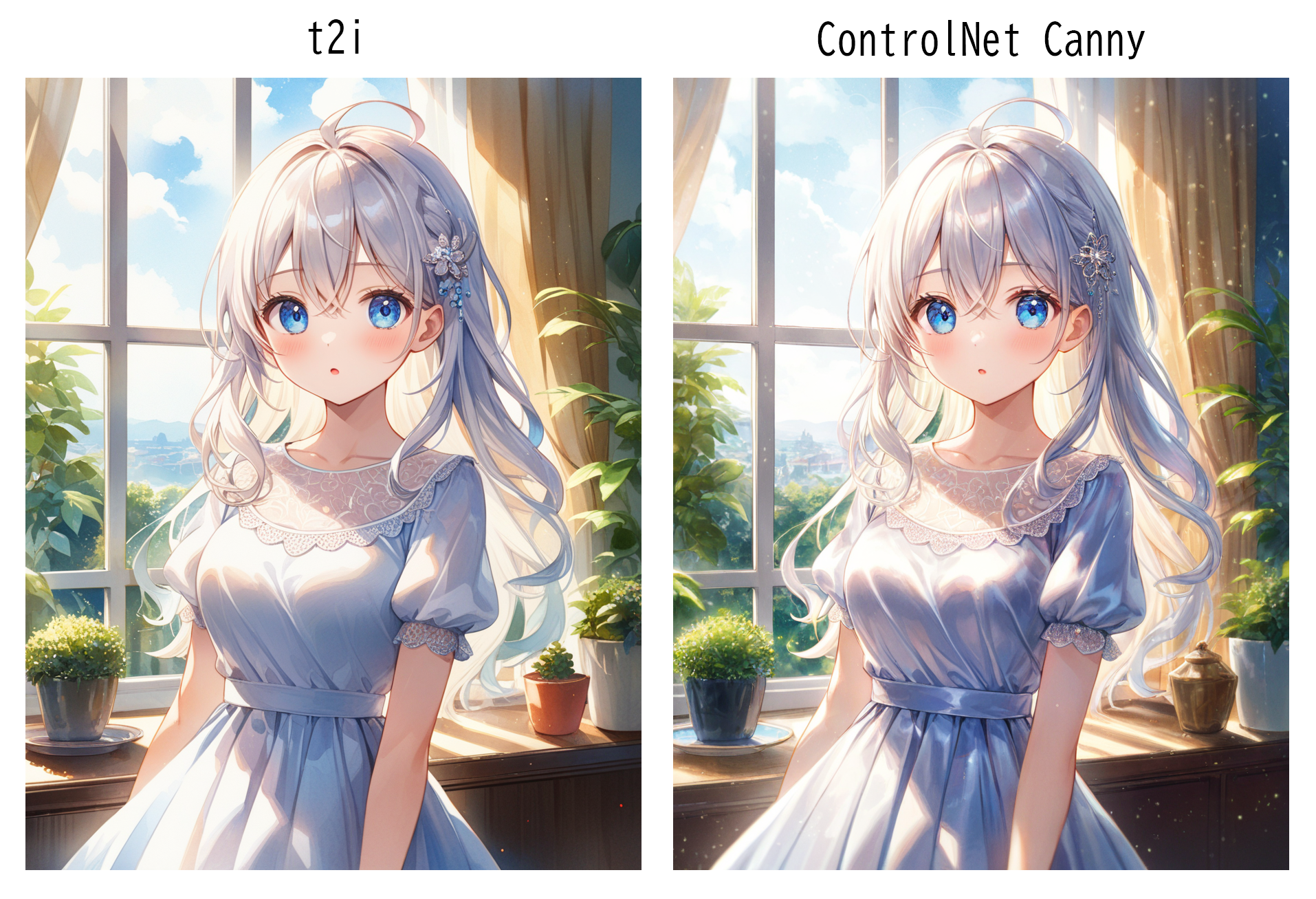
例えばサンプルワークフローの様に"Light particles"を入力するとt2iの画像に光のパーティクルが追加で生成されますし、"Satin dress"を入力するとドレスがよりサテンの質感になります。
"Blue texture"を入力すれば画像全体が青味がかり、"Cat ears"を入力すれば後から猫耳にできたり、可能性は無限大です。ControlNet Cannyグループの「CLIP Text Encode++ (Negative)」に追加のネガティブプロンプトを入力。
ControlNet Cannyグループの「Apply ControlNet (Advanced)」のstrengthをお好みで調整。ここの数値が大きいほどControlNetの効きが強くなります。
ControlNet Cannyグループの「KSampler (Efficient)」にステップ数、CFG、サンプラー、スケジューラー、denoiseを設定。denoiseが大きいとt2iからの変化も大きくなります。
Upscale & Save Imageの「Load Upscale Model」に使用するアップスケーラーを設定。
Upscale & Save Imageの「Ultimate SD Upscale」にステップ数、CFG、サンプラー、スケジューラー、denoise、その他パラメーターを設定。(よくわからない場合はこのままの設定を使用してください)
生成を実行する。
Set the image size to be generated in “SDXL Empty Latent Image (rgthree)” in the Settings & Prompts group.
In the "Eff. Loader SDXL" in the Settings & Prompts group, set "base_ckpt_name" to the model to use and "base_clip_skip" to the CLIP Skip.
If you use LoRA, set the LoRA you want to use in "LoRA Stacker" in the Settings & Prompts group.
Enter positive and negative prompts in "Eff. Loader SDXL" in the Settings & Prompts group.
Set the number of steps, CFG, sampler, and scheduler in “KSampler SDXL (Eff.)” in the Generate group.
Set the Canny model to be used in “Load ControlNet Model” of the ControlNet Canny group.
If you don’t have the Canny model, download diffusion_pytorch_model.fp16.safetensors from https://huggingface.co/diffusers/controlnet-canny-sdxl-1.0.
After downloading, it is convenient to rename the file so that it can be identified as a Canny model.Adjust the parameters of "Canny Edge" in the ControlNet Canny group to your liking. (If you are not sure, use the settings as they are.)
Enter additional positive prompt to "CLIP Text Encode++ (Positive)" in the ControlNet Canny group.
You can leave this blank, but you can make various adjustments by entering additional prompts.
For example, if you enter "Light particles" as in the sample workflow, additional light particles will be generated in the t2i image, and if you enter "Satin dress", the dress will have a more satin texture.
If you input "Blue texture" the entire image will have a blue tint, if you input "Cat ears" you can add cat ears later; the possibilities are endless.Enter additional negative prompts to "CLIP Text Encode++ (Negative)" in the ControlNet Canny group.
Adjust the strength of "Apply ControlNet (Advanced)" in the ControlNet Canny group to your liking. The higher the value here, the stronger the effect of ControlNet.
Set the number of steps, CFG, sampler, scheduler, and denoise in the "KSampler (Efficient)" of the ControlNet Canny group. The larger the denoise, the larger the change from t2i.
Set the upscaler to be used for "Load Upscale Model" in Upscale & Save Image.
Set the number of steps, CFG, sampler, scheduler, denoise, and other parameters in "Ultimate SD Upscale" of Upscale & Save Image. (If you are not sure, use the settings as they are.)
Run the generation.
ポイント / Point
上部の「Fast Groups Muter (rgthree)」でControlNet CannyグループとUpscale & Save Imageグループを"No"に設定しておくとt2iのみ実行されるので生成のリトライがしやすいです。
ワークフローが横長なので「Fast Groups Muter (rgthree)」を複数追加しました。各グループの「->」をクリックするとそのグループにジャンプできます。
If you set the ControlNet Canny group and Upscale & Save Image group to "No" in the "Fast Groups Muter (rgthree)" at the top, only t2i will be executed, making it easier to retry generation.
Since the workflow is horizontal, I added multiple "Fast Groups Muter (rgthree)". You can jump to each group by clicking "->" of each group.
英文はGoogle翻訳を使用して翻訳されています。
The English text has been translated using Google Translate.