Handsome Males Wildcard




















詳細
ファイルをダウンロード (1)
モデル説明
This is a wildcard .txt file for use with the Wildcard extension. Wildcards can be used with any checkpoint. Pairs well with Male Streetwear Wildcard
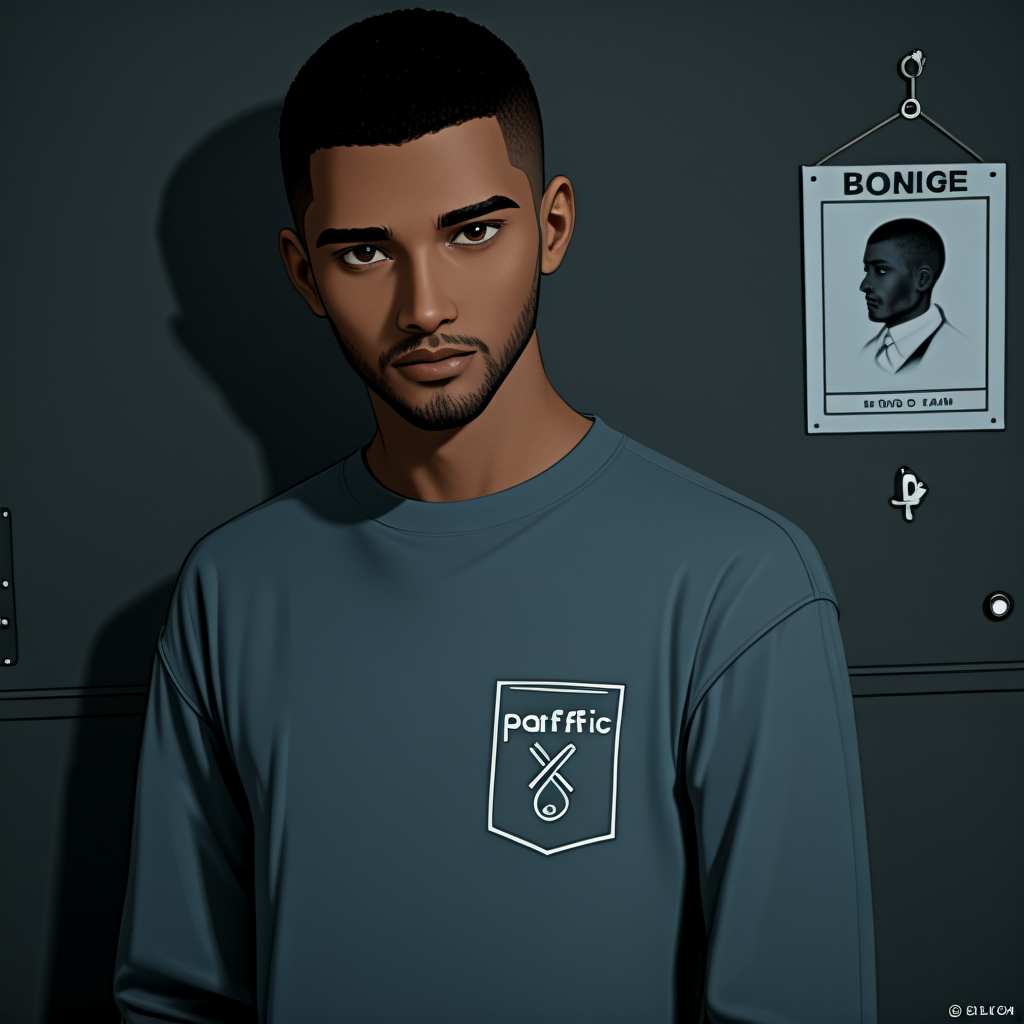
Diverse wildcard pack for handsome young male appearances: 75 entries emphasizing short hair, masculine facial traits, and skin/eye variations. Showcasing ethnic diversity for inclusive, randomized portraits or character gens in Stable Diffusion—boosts prompt variety without repetition.
The sample images that appear above were created with my custom checkpoint merge Piledriver. No inpainting or LoRAs were used in their creation.
Warning: the Piledriver checkpoint link will navigate you to a NSFW model.
Installing Wildcards Extension, File Placement, and Usage in Popular UIs
Wildcards require an extension for dynamic replacement (e.g., appearance4 pulls a random line from appearance4.txt). Here's how for the most popular UIs: Automatic1111 (A1111) WebUI, ComfyUI, and Fooocus. (InvokeAI and others have similar support via custom scripts, but these cover the basics.)
Automatic1111 (A1111) WebUI:
Install Extension: In the WebUI, go to the "Extensions" tab > "Install from URL". Paste https://github.com/adieyal/sd-dynamic-prompts (recommended for advanced features) or https://github.com/AUTOMATIC1111/stable-diffusion-webui-wildcards (simpler version). Click "Install", then "Apply and restart UI".
File Placement: Put appearance4.txt in the extensions/sd-dynamic-prompts/wildcards/ folder (create the "wildcards" subfolder if missing). For the simpler extension, use extensions/stable-diffusion-webui-wildcards/wildcards/.
Usage in Prompt: In the txt2img or img2img prompt field, type something like "a young man with appearance4, detailed face" (no .txt extension). Enable the extension in the "Scripts" dropdown if needed (e.g., select "Dynamic Prompts" and check "Enabled"). Generate—each run picks a random line for variety.
ComfyUI:
Install Extension/Custom Nodes: Use the ComfyUI Manager (install via git if not present). Search for and install "ComfyUI-Impact-Pack" (for easy wildcard nodes) or "ComfyUI-Easy-Use" (for simple wildcard handling). Restart ComfyUI.
File Placement: Put appearance4.txt in the ComfyUI/input/ folder (for basic use) or a custom wildcards/ directory in your ComfyUI root (configure in node settings).
Usage in Prompt: Add a "Text Load Line From File" node (built-in) or "ImpactWildcardEncode" from Impact Pack. Connect it to your CLIP Text Encode node: Load the file, set to random mode. In the prompt node, use {wildcard "appearance4"} or similar syntax per node. Run the workflow—randomizes per generation.
Fooocus:
Install Extension: Fooocus has built-in wildcard support—no extra install needed (it's in the core app).
File Placement: Put appearance4.txt in the Fooocus/user_path_config/wildcards/ folder (Fooocus creates it on first run; check your install dir).
Usage in Prompt: In the prompt box, type "a young man with appearance4, realistic portrait". Fooocus automatically replaces appearance4 with a random line from the file on each generation. For batches, it varies naturally.