Prompt Hunter - Simple IMG-2-TXT Workflow (Epic Prompts for Z-Image, Qwen, Flux etc.)




详情
下载文件 (1)
关于此版本
模型描述
 ⚡ QWEN3-VL Image 2 Prompt Workflow ⚡
Simple IMG-2-TXT WF for epic prompts in natuaral language for Flux, Qwen, Z-Image and many more models.
This workflow solves the frustrating problem of lost or hidden prompts. 👌
✨ What is it good for? (Use Cases)
You find an image on the web that inspires you, and want to recreate it, either partially or completely.
You see an appealing image right here on CivitAI, and are interested in the prompt, but the Creator decided to hide it.
You want to regenerate one of your older creations, but no longer have the original prompt.
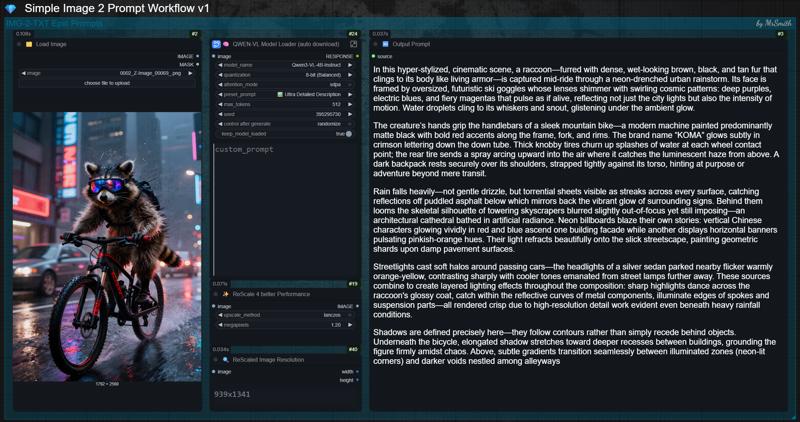
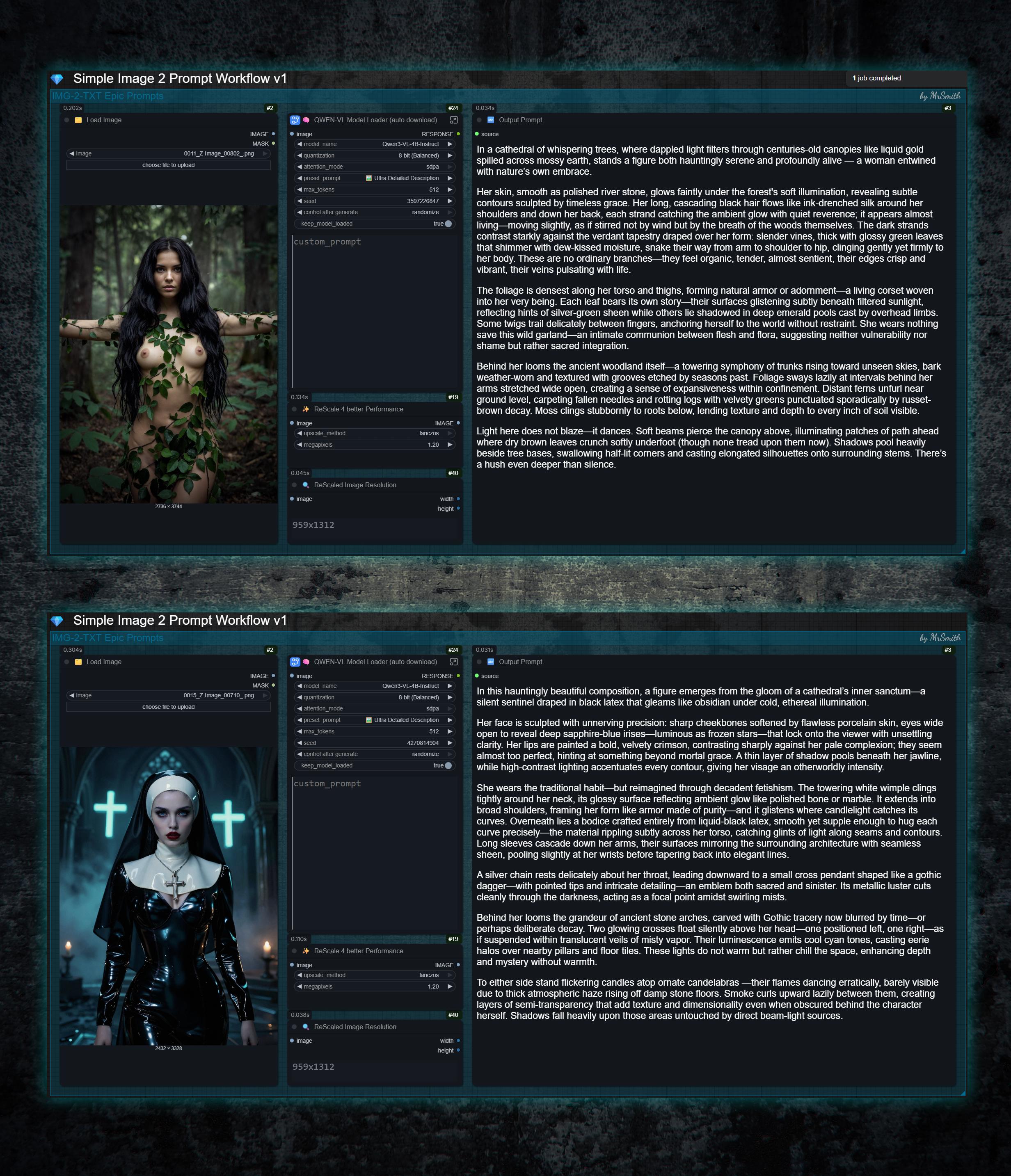
In all these cases, simply drag the image into the workflow, and it will spit out a detailed, high-quality prompt that, in most cases, leads to an identical result. Depending on the image and prompt complexity, the results are often even better.
🚀 What do you need to get started right away?
This Workflow - just download it, unzip the file and load the *.json into ComfyUI
No manual model download required. The selected model will be downloaded automatically.
❓ Do I need some special nodes to run this workflow?
All nodes used in this workflow are common nodes that should already be installed in your ComfyUI setup. If ComfyUI reports a missing node, simply install it via ComfyUI Manager and restart.
Custom nodes used in this workflow:
💡 Usage:
Drop or load your desired image into the workflow.
Select your Qwen3VL model from the drop down menu. It will be automatically downloaded on the first run. Because of this the initial run will take a little longer. You can check the download progress in the console.
Choose the QwenVL model depending on your GPU (VRAM size). Iam using the Qwen3-VL-4B-Instruct model on my 16GB Card and it just works fine and provides really great prompts.
Do not use the 32B models unless you enjoy watching your GPU try to escape through the nearest window. 😉
Choose your desired "preset_prompt". Ultra Detailed or Cinematic works very well in most cases.
Quantization? Just use 8-bit. 16-bit only slows down processing without improving results. You can also try 4-bit. For some setups, this can be faster.
Ready to go! Just hit "RUN"!
⬇️ Manual Download Model Files:
If you prefer to download the model manually you can find the different versions on Huggingface. Just place them in the /models/LLM/Qwen-VL/ directory.
❓ Why the ReScale Image Node?
Larger images take longer to process. To improve performance, the node automatically downsizes large images to 1.2 MP. You can reduce the resolution further if the results remain acceptable, which will speed up processing even more.
With low-resolution images, the situation is reversed. They process quickly, but depending on the resolution, there may not be enough image information available. In such cases, the image is upscaled to 1.2 MP to ensure sufficient pixels for proper analysis.
❓ Why Qwen3-VL instead of Florence2?
I have extensively tested and compared both models. In my opinion, Qwen-VL delivers superior results. It provides more versatile options and generates prompts that I find to be significantly closer to the source image's composition than those produced by Florence2.
Qwen3-VL is highly regarded for its strong understanding of artistic styles, photorealism, lighting and complex compositions. This results in production-ready prompts that can be used immediately with advanced natural language models such as Flux, Z-Image, Qwen and similar models.
If you have ideas for optimization / new feature requests or just wanna say "thanks" feel free to leave a post in the comment section. If you have questions about this workflow, feel free to reach out to me on Discord anytime!
💕 Don't forget to spread some love - hit the like button and follow me (also on Ko-Fi) to not miss any new updates and more workflows like this one! 👍
If you like these workflows you can also buy me a coffee! ☕
Have fun and feel free to post your generated images in the gallery below! I would like to see what you do with this workflow!😊