Python SDXL local









Details
Download Files (1)
Model description
Project Overview
https://github.com/al-swaiti/SDXL-LOCAL
using https://arxiv.org/abs/2309.05019 SA-Solver Scheduler
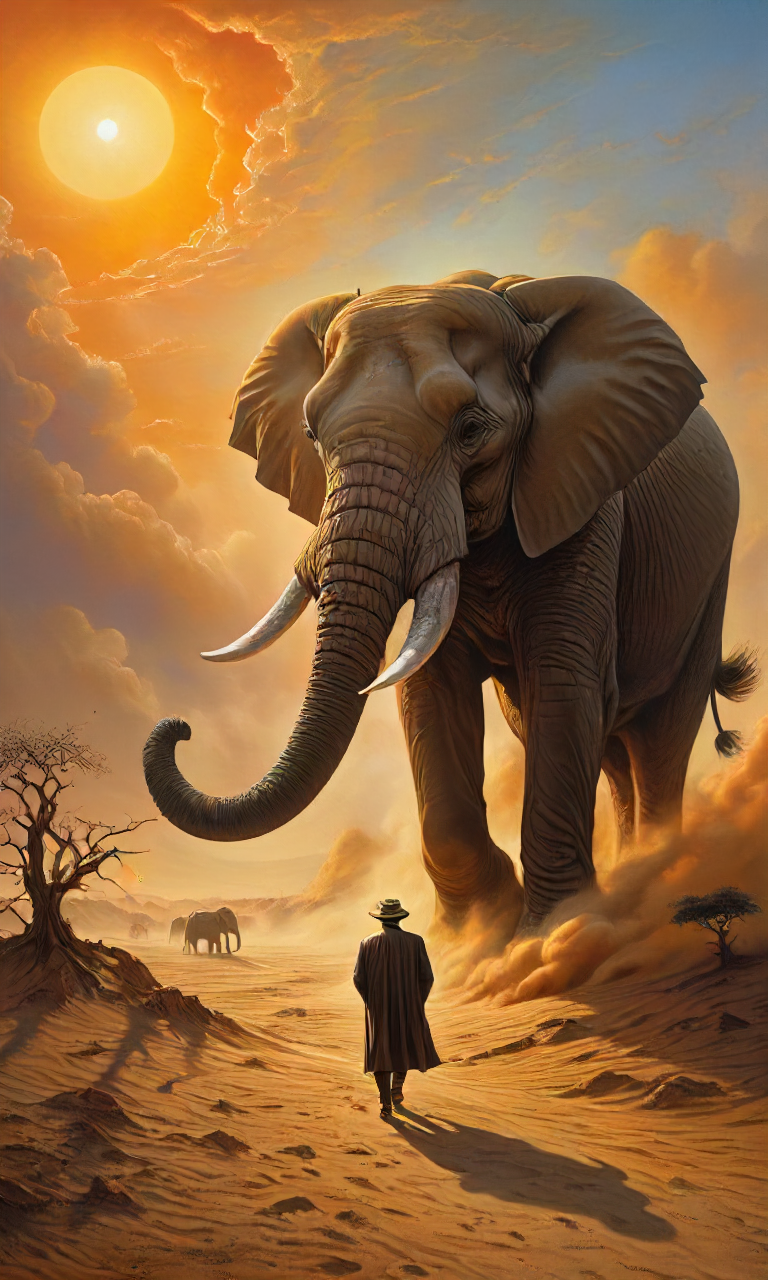
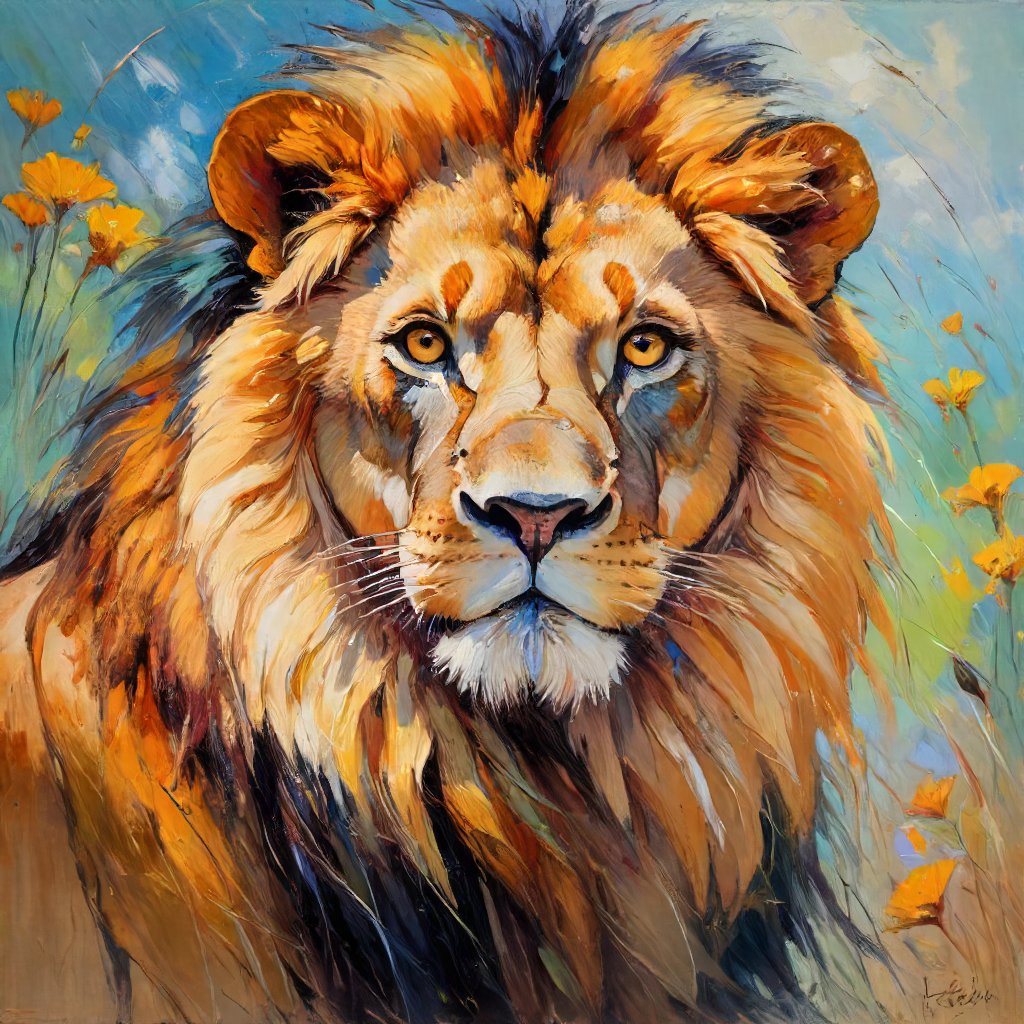
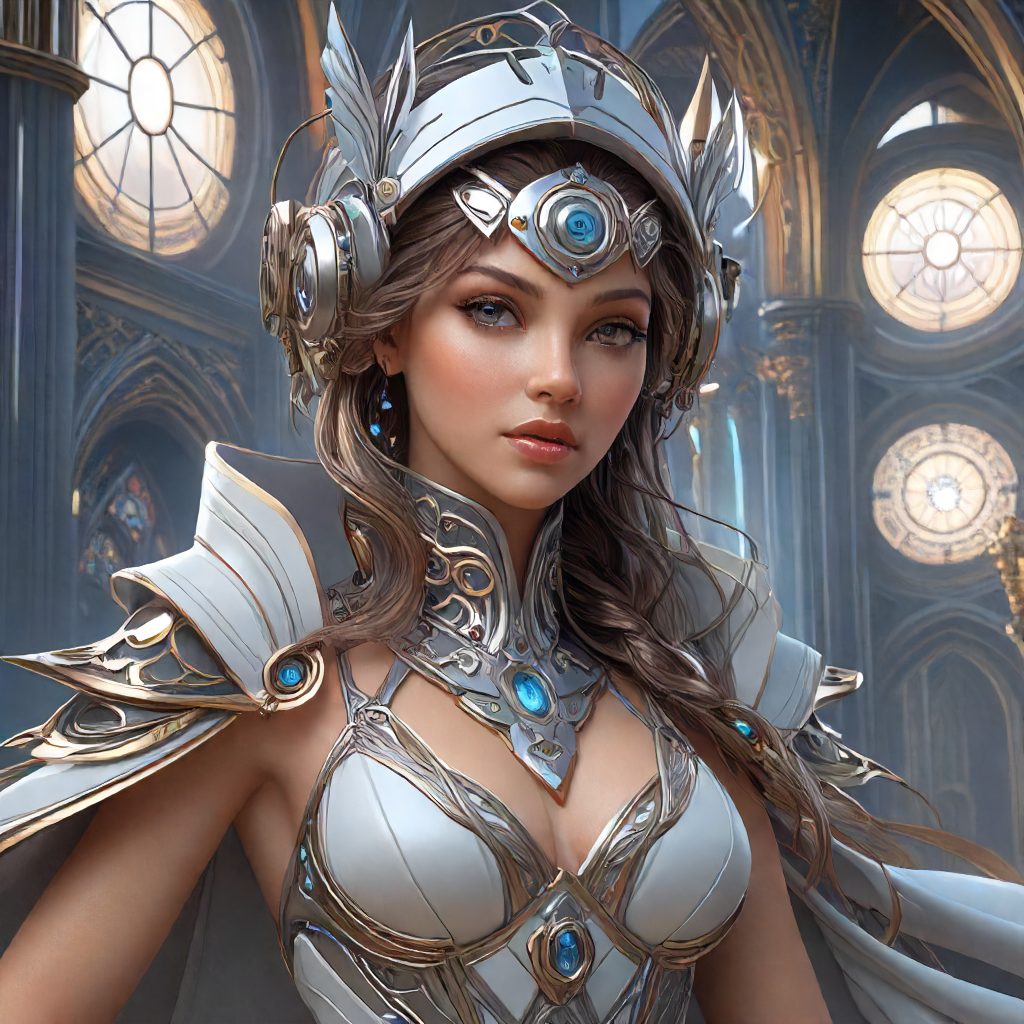
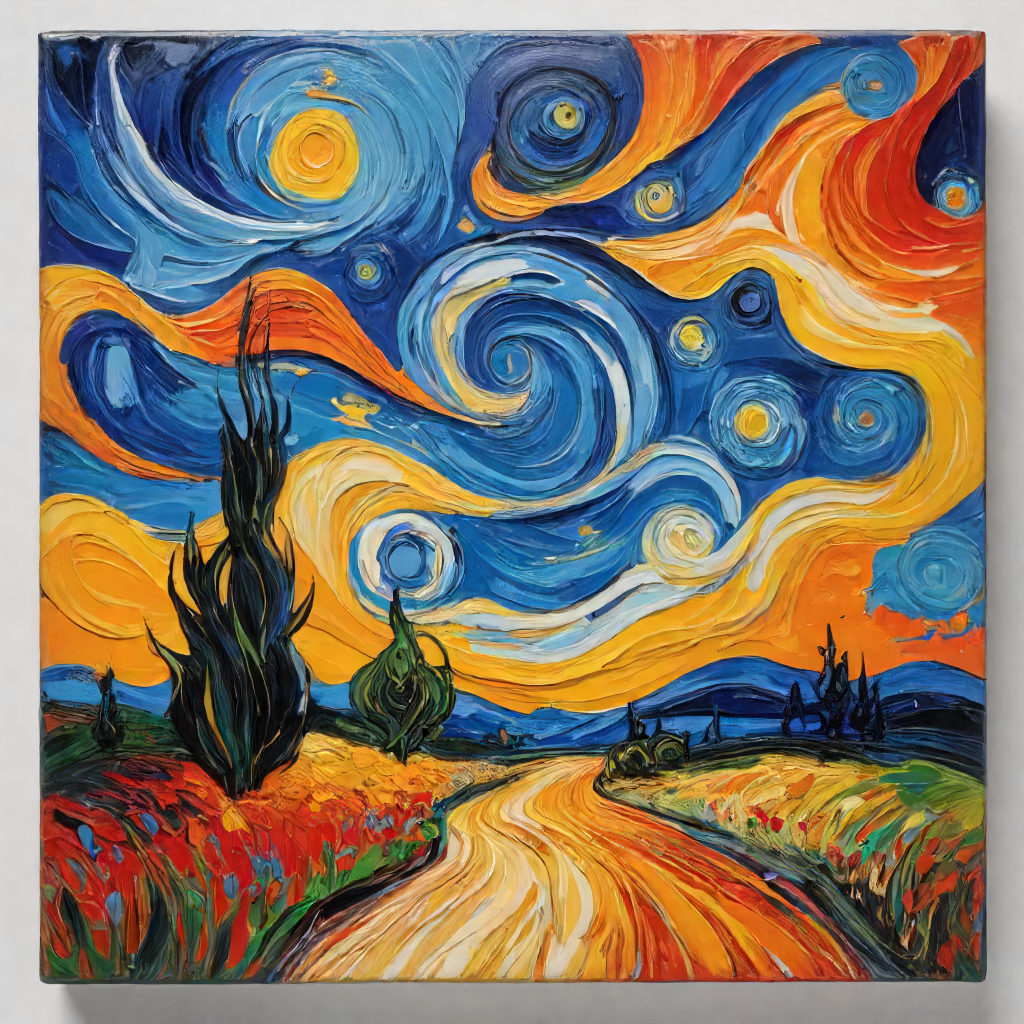
This project demonstrates how to generate images using Stable Diffusion XL with optional prompt enhancement via Gemini's API. The code includes configurable settings and the ability to save/load these settings from a JSON file.
Prerequisites
Python 3.8 or higher (Note: For using
torch.compile, Python 3.11 or lower is required)venvorcondafor creating a virtual environment
Setup
Using venv
Create a virtual environment:
python -m venv civitai_env
Activate the virtual environment:
On Windows:
civitai_env\Scripts\activate
On macOS and Linux:
source civitai_env/bin/activate source civitai_env/bin/activate.fishInstall the required libraries:
pip install torch diffusers accelerate pillow google-generativeai transformersUsing conda
Create a conda environment:
conda create --name civitai_env python=3.11
Activate the conda environment:
conda activate civitai_envInstall the required libraries:
conda install pytorch torchvision torchaudio pytorch-cuda=11.7 -c pytorch -c nvidia
pip install diffusers accelerate pillow google-generativeai transformers
Usage
Clone the repository:
git clone https://github.com/al-swaiti/SDXL-LOCAL
cd SDXL-LOCAL
Run the script:
python main.pyConfiguration
The script uses a configuration file (config.json) "auto created after first run"to store user inputs. If the file doesn't exist, default values are used. The script will prompt you to enter the following details:
Model location
Prompt
Negative prompt
Width and height of the image
Number of inference steps
CFG scale
Seed
Gemini API key (optional)
You can also provide these inputs through the command line. If no input is provided, the default values or the values from the configuration file will be used.
Enhancing Prompts with Gemini's API
To get professional prompt results, you can use the Gemini API. If you wish to use this feature, insert your Gemini API key when prompted or include it in the configuration file.
Notes
If you want to use
torch.compile, ensure you are using Python 3.11 or lower. and enable ( pipe.unet = torch.compile(pipe.unet, mode="reduce-overhead", fullgraph=True) ) line.The generated image will be saved with a timestamp-based filename.
for low gpu disable ( pipe.to("cuda")) and enable (pipe.enable_sequential_cpu_offload())
follow me on https://civitai.com/user/AbdallahAlswa80
watch me on https://www.deviantart.com/abdallahalswaiti
connect me on https://www.linkedin.com/in/abdallah-issac/
try my model https://civitai.com/models/130664