ComfyUI beginner friendly Z-Image Turbo Text-to-Image with LORAs Workflow by Sarcastic TOFU


















Details
Download Files (1)
Model description
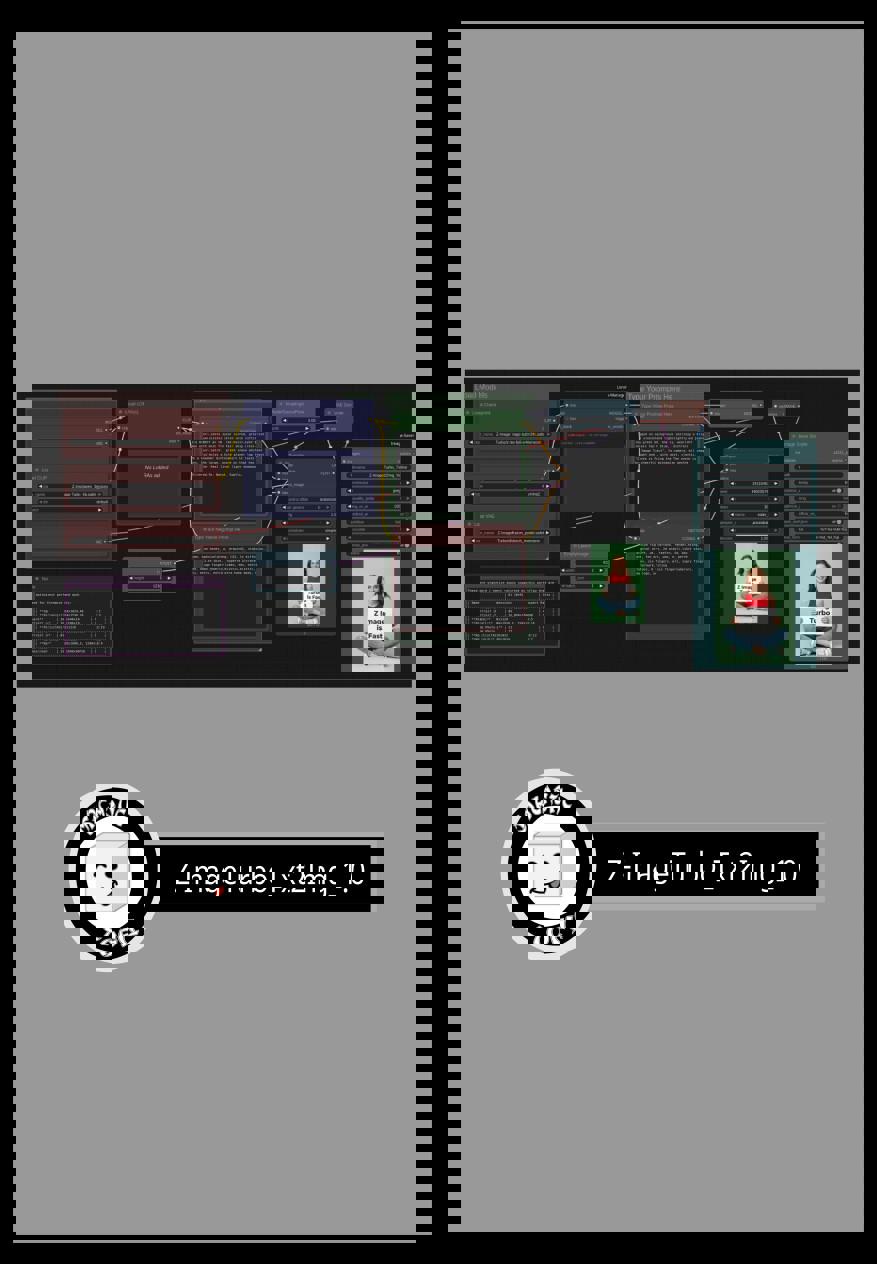
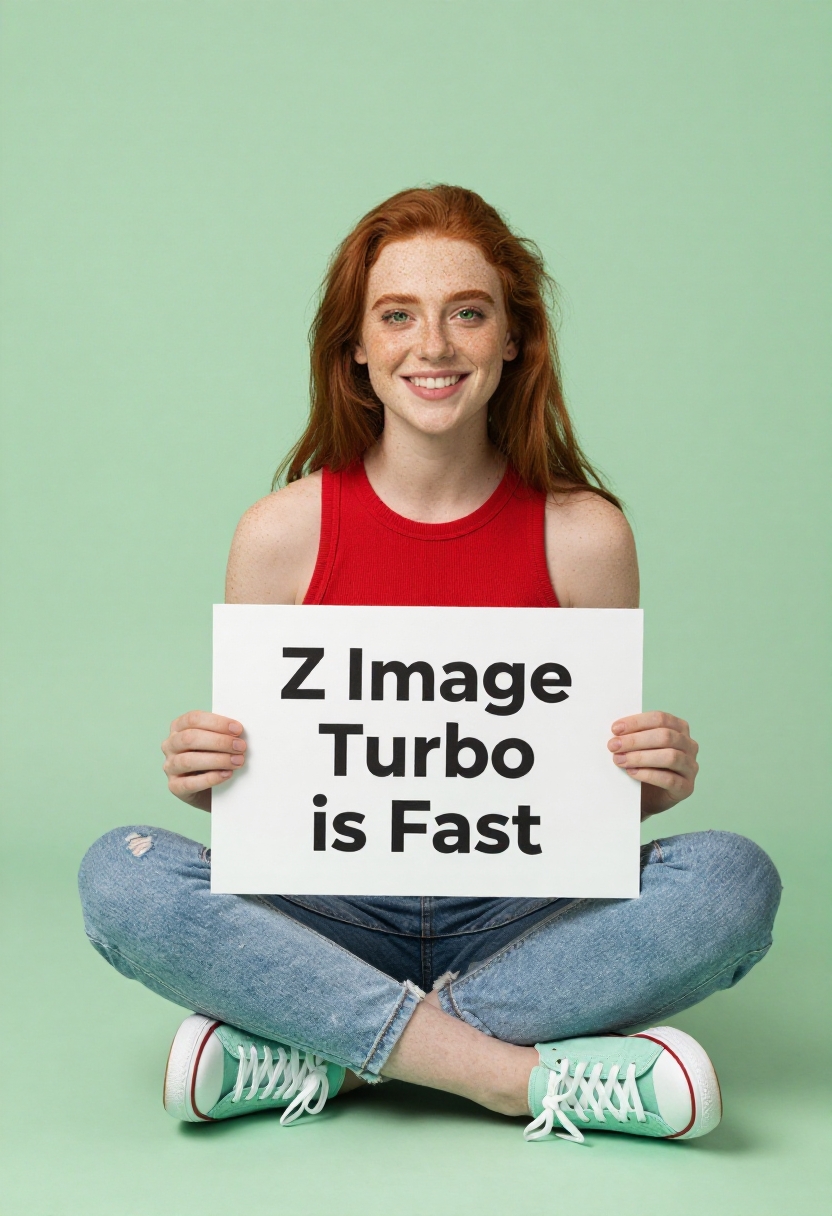
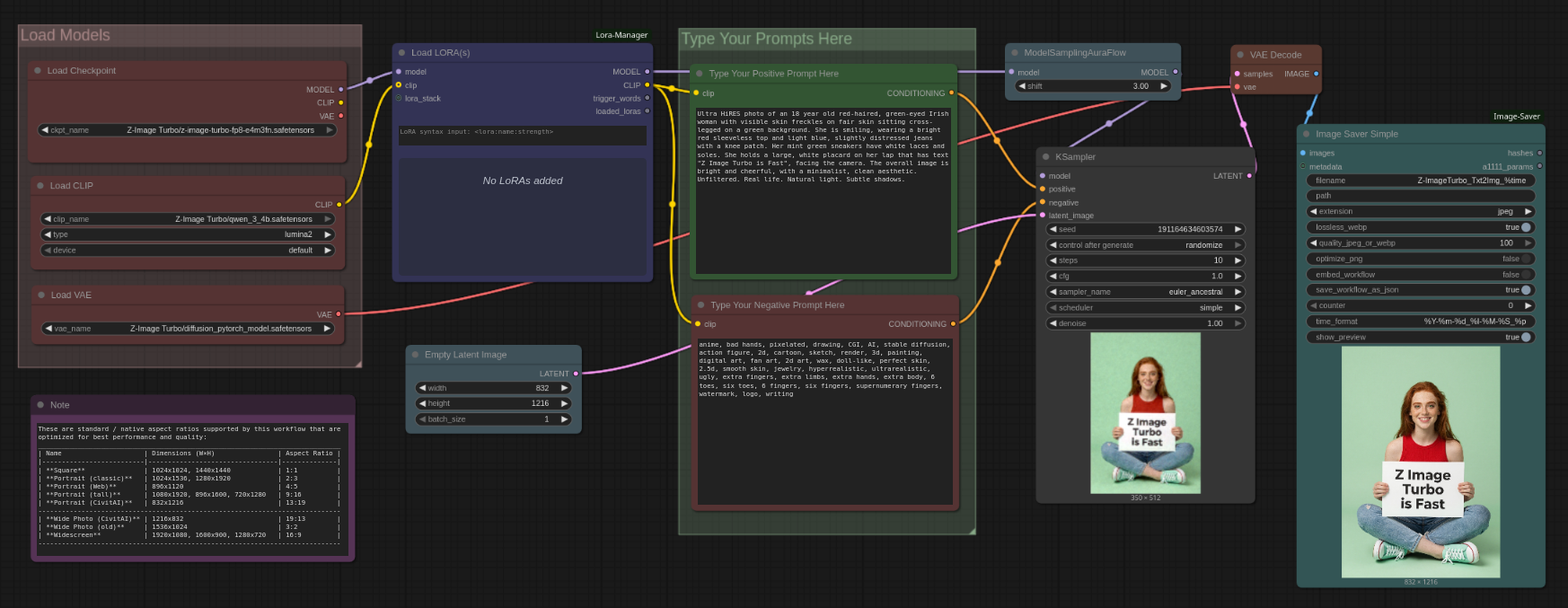
The Z-Image Turbo model is a newly released (as of end of November 2025), highly optimized, and efficient Text-to-Image Diffusion Transformer (DiT) model developed by Tongyi-MAI (Alibaba's AI lab). It is specifically designed for lightning-fast inference while maintaining high photorealistic quality on consumer-grade hardware. I have made this workflow future proof so that as soon as Z-Image Turbo LORAs are released they can be used with this. I am eagerly awaiting for the Z-Image Edit so I can create better workflows based on this. I am simply stunned how fast this is! It can generate near perfect Flux.1, even Flux.2 quality level image in 30 seconds on an 8 GB GPU, with no quantization (no Q2, Q4 etc models, it's a non-GGUF safetensor with size similar to any average SDXL 1.0 model). This is a very simple ComfyUI beginner friendly Text-to-Image workflow that will work with a single Z-Image Turbo model with multiple LORAs (This workflow does require ComfyUI's LORA Manager plugin to function. It is a good idea to install both ComfyUI manager and LORA Manager plugin to help you easily download and manage Checkpoints, LORAs and other resources. Not only these two are helpful for this workflow but they will help you a lot in any other cases). Make sure you install your necessary addons for ComfyUI using ComfyUI manager and place the correct files in correct places. Also check out my other workflows for SD 1.5 + SDXL 1.0, WAN 2.1, WAN 2.2, QWEN, HiDream, KREA, Chroma, AuraFlow and Flux if you find this workflow useful.
How to use this -
#1. Just select your desired Z-Image Turbo model first and then load
#2. one or multiple matching LORA(s) from LORA Manager to start
#3. then input your prompts (positives and negatives).
#4. select image dimensions and how many images you want (batch no)
#5. select image sampling methods, cfg, steps etc. settings
#6. finally press the run button and generate. That's it..
*** This workflow will also function if you know how to properly disable the LORA Node and bypass it, if you are in doubt just use it as it is without any LORA and with default settings.
### To use this workflow you need to log into huggingface and download necessary files from there (I also included a text file on the archive that has the workflow file, in which you will find even more links for essential downloads for my other workflows) -
## Required Models
=========================================================================================================================
### Download Links for Z-Image Turbo Checkpoint
https://huggingface.co/T5B/Z-Image-Turbo-FP8/resolve/main/z-image-turbo-fp8-e4m3fn.safetensors
### Download Links for Z-Image Turbo Encoder
### Download Links for Flux VAE (Note - Z-Image Turbo uses the standard Flux VAE, if you already have it you can re-use it)
https://huggingface.co/Comfy-Org/z_image_turbo/resolve/main/split_files/vae/ae.safetensors
% LORA(s) Used in this Workflow example (you can use this or other LORAs or no LORAs)
----------------------------------------------------------------------------------
None, but I will update this section as soon as I will find a good LORA for Z-Image Turbo